


Adding a Nifty Conversion Calculator to OpenOffice.org

Productivity Sauce
A conversion calculator can save you a lot of time and unnecessary mouse clicks when you need to convert values in a document from the imperial to the metric system (or vice versa). Although OpenOffice.org doesn't have a built-in calculator, you can easily create your own one using OpenOffice.org Basic. Start with creating a dialog with three fields in it:
- NumericField1 -- a numeric field where the user enters the value to be converted
- ListBox1 -- a drop-down list containing a list of the available conversion options (e.g., Fahrenheit -> Celsius, Foot -> Meter, and so on)
- NumericField2 -- a numeric field which displays the converted value
The dialog box should also have two buttons: Convert (type OK) which performs the conversion and Cancel (type Cancel) which closes the dialog. Save the dialog and give it the name ConvertSystemDialog.
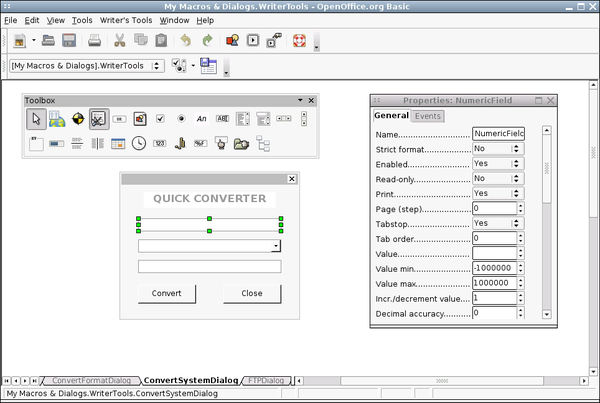
With the dialog in place, you start working on the code. The macro itself is pretty simple. It starts with initializing and displaying the ConvertSystemDialog dialog. It then creates a loop which runs the macro until the user presses the Cancel button. In the loop, there is the Select Case statement which chooses the appropriate Case code block based on the option the user selects from the ListBox1 drop-down list. For example, if the user selects the Fahrenheit -> Celsius item, the macro runs the Case "Fahrenheit -> Celsius" code block.
Sub QuickConverter()

OpenDialog("ConvertSystemDialog")

Dialog=CreateUnoDialog(TheDialog)

DialogField1=Dialog.getControl("NumericField1")

DialogField2=Dialog.getControl("ListBox1")

DialogField2.SelectItemPos(0, True)

DialogField3=Dialog.getControl("NumericField2")

While Dialog.execute=1

  DialogField1=Dialog.getControl("NumericField1")

  InputValue=DialogField1.value

  Select Case DialogField2.SelectedItem

    Case "Fahrenheit -> Celsius"

    ConvertedValue=(InputValue-32)*5/9

    DialogField3=Dialog.getControl("NumericField2").setValue(ConvertedValue)

    Case "Celsius -> Fahrenheit"

    ConvertedValue=InputValue*9/5+32

    DialogField3=Dialog.getControl("NumericField2").setValue(ConvertedValue)

    Case "Meter -> Foot"

    ConvertedValue=InputValue*3.28

    DialogField3=Dialog.getControl("NumericField2").setValue(ConvertedValue)

    Case "Foot -> Meter"

    ConvertedValue=InputValue/3.28

    DialogField3=Dialog.getControl("NumericField2").setValue(ConvertedValue)

    End Select

  WEnd

End Sub
The macro above converts temperature and distance values, but you can easily modify it to include other types of conversion. For example, if you want the calculator to include the gallon to liter conversion, add the appropriate option to the ListBox1 field and create a new Case block containing the conversion formula:
Case "Gallon -> Liter"

ConvertedValue=InputValue*3.78

DialogField3=Dialog.getControl("NumericField2").setValue(ConvertedValue)
Now you can quickly perform conversions from the convenience of your favorite productivity suite. If you don't fancy creating the described conversion calculator from scratch, you can get it as part of the Writer's Tools extension.
Comments
comments powered by DisqusSubscribe to our Linux Newsletters
Find Linux and Open Source Jobs
Subscribe to our ADMIN Newsletters
Support Our Work
Linux Magazine content is made possible with support from readers like you. Please consider contributing when you’ve found an article to be beneficial.

News
-
United Nations Open Source Portal Goes Live
A new open source portal seeks to coordinate and scale open source efforts across the United Nations system.
-
KDE Linux Drops AUR
KDE Linux developers have dropped the Arch User Repository from the build pipeline due to security concerns; other distributions should consider doing the same.
-
California May Exempt Linux from Its Age-Verification Law
After backlash from the Linux community, California may be backing off on its promise to force all operating systems to verify age, but one platform may still have to comply.
-
Another Logic Bug Found in Linux Kernel
Qualys has discovered a vulnerability in the Linux kernel that can be used to elevate standard user privileges.
-
Ubuntu Core 26 Offers Game-Changing Enterprise Features
Ubuntu Core 26 could be a game-changer for organizations looking for increased security and reliability.
-
AI Flooding the Linux Kernel Security Mailing List
AI is giving Linus Torvalds a headache, but not in the way you might think.
-
Top Priorities for Open Source Pros Seeking a New Job
Professional fulfillment tops the list, according to LPI report.
-
Container-Based Fedora Hummingbird Designed for Agent-First Builders
Fedora Hummingbird brings the same approach to the host OS as it does to containers to level up security.
-
Linux kernel Developers Considering a Kill Switch
With the rise of Linux vulnerabilities, the kernel developers are now considering adding a component that could help temporarily mitigate against them… in the form of a kill switch.
-
Fedora 44 Now Gaming Ready
The latest version of Fedora has been released with gaming support.
openoffice 3.1.0 installation problems
Can any one help. I have follwed many faqs, tutorial and instructions. I am not succesful with the installation.