


Adding a Nifty Conversion Calculator to OpenOffice.org

Productivity Sauce
A conversion calculator can save you a lot of time and unnecessary mouse clicks when you need to convert values in a document from the imperial to the metric system (or vice versa). Although OpenOffice.org doesn't have a built-in calculator, you can easily create your own one using OpenOffice.org Basic. Start with creating a dialog with three fields in it:
- NumericField1 -- a numeric field where the user enters the value to be converted
- ListBox1 -- a drop-down list containing a list of the available conversion options (e.g., Fahrenheit -> Celsius, Foot -> Meter, and so on)
- NumericField2 -- a numeric field which displays the converted value
The dialog box should also have two buttons: Convert (type OK) which performs the conversion and Cancel (type Cancel) which closes the dialog. Save the dialog and give it the name ConvertSystemDialog.
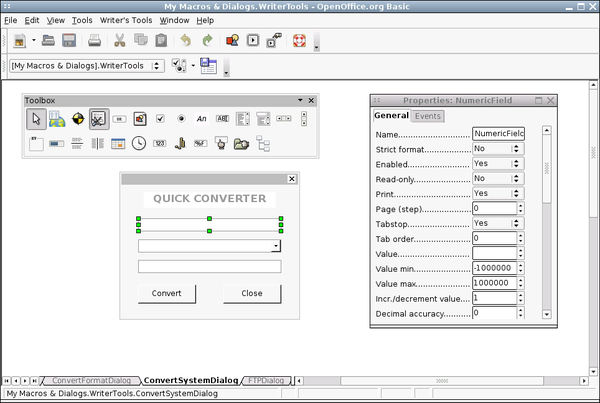
With the dialog in place, you start working on the code. The macro itself is pretty simple. It starts with initializing and displaying the ConvertSystemDialog dialog. It then creates a loop which runs the macro until the user presses the Cancel button. In the loop, there is the Select Case statement which chooses the appropriate Case code block based on the option the user selects from the ListBox1 drop-down list. For example, if the user selects the Fahrenheit -> Celsius item, the macro runs the Case "Fahrenheit -> Celsius" code block.
Sub QuickConverter()

OpenDialog("ConvertSystemDialog")

Dialog=CreateUnoDialog(TheDialog)

DialogField1=Dialog.getControl("NumericField1")

DialogField2=Dialog.getControl("ListBox1")

DialogField2.SelectItemPos(0, True)

DialogField3=Dialog.getControl("NumericField2")

While Dialog.execute=1

  DialogField1=Dialog.getControl("NumericField1")

  InputValue=DialogField1.value

  Select Case DialogField2.SelectedItem

    Case "Fahrenheit -> Celsius"

    ConvertedValue=(InputValue-32)*5/9

    DialogField3=Dialog.getControl("NumericField2").setValue(ConvertedValue)

    Case "Celsius -> Fahrenheit"

    ConvertedValue=InputValue*9/5+32

    DialogField3=Dialog.getControl("NumericField2").setValue(ConvertedValue)

    Case "Meter -> Foot"

    ConvertedValue=InputValue*3.28

    DialogField3=Dialog.getControl("NumericField2").setValue(ConvertedValue)

    Case "Foot -> Meter"

    ConvertedValue=InputValue/3.28

    DialogField3=Dialog.getControl("NumericField2").setValue(ConvertedValue)

    End Select

  WEnd

End Sub
The macro above converts temperature and distance values, but you can easily modify it to include other types of conversion. For example, if you want the calculator to include the gallon to liter conversion, add the appropriate option to the ListBox1 field and create a new Case block containing the conversion formula:
Case "Gallon -> Liter"

ConvertedValue=InputValue*3.78

DialogField3=Dialog.getControl("NumericField2").setValue(ConvertedValue)
Now you can quickly perform conversions from the convenience of your favorite productivity suite. If you don't fancy creating the described conversion calculator from scratch, you can get it as part of the Writer's Tools extension.
Comments
comments powered by DisqusSubscribe to our Linux Newsletters
Find Linux and Open Source Jobs
Subscribe to our ADMIN Newsletters
Support Our Work
Linux Magazine content is made possible with support from readers like you. Please consider contributing when you’ve found an article to be beneficial.

News
-
Canonical Releases Ubuntu 24.04
After a brief pause because of the XZ vulnerability, Ubuntu 24.04 is now available for install.
-
Linux Servers Targeted by Akira Ransomware
A group of bad actors who have already extorted $42 million have their sights set on the Linux platform.
-
TUXEDO Computers Unveils Linux Laptop Featuring AMD Ryzen CPU
This latest release is the first laptop to include the new CPU from Ryzen and Linux preinstalled.
-
XZ Gets the All-Clear
The back door xz vulnerability has been officially reverted for Fedora 40 and versions 38 and 39 were never affected.
-
Canonical Collaborates with Qualcomm on New Venture
This new joint effort is geared toward bringing Ubuntu and Ubuntu Core to Qualcomm-powered devices.
-
Kodi 21.0 Open-Source Entertainment Hub Released
After a year of development, the award-winning Kodi cross-platform, media center software is now available with many new additions and improvements.
-
Linux Usage Increases in Two Key Areas
If market share is your thing, you'll be happy to know that Linux is on the rise in two areas that, if they keep climbing, could have serious meaning for Linux's future.
-
Vulnerability Discovered in xz Libraries
An urgent alert for Fedora 40 has been posted and users should pay attention.
-
Canonical Bumps LTS Support to 12 years
If you're worried that your Ubuntu LTS release won't be supported long enough to last, Canonical has a surprise for you in the form of 12 years of security coverage.
-
Fedora 40 Beta Released Soon
With the official release of Fedora 40 coming in April, it's almost time to download the beta and see what's new.
openoffice 3.1.0 installation problems
Can any one help. I have follwed many faqs, tutorial and instructions. I am not succesful with the installation.