


Extension Watch: Google Mail Checker Plus for Chrome

Productivity Sauce
On the face of it, Google Mail Checker Plus (GMCP) looks like just another Chrome extension that displays unread email count. But dig deeper and you'll discover that this extension offers a handful of genuinely useful features that make it a must-have utility for any Gmail user. For starters, GMCP sports the ability to display desktop notifications, so you can be notified about incoming emails even with Chrome running in the background. You can use the notification window not only to preview each new message, but also archive, delete, and mark it as spam.
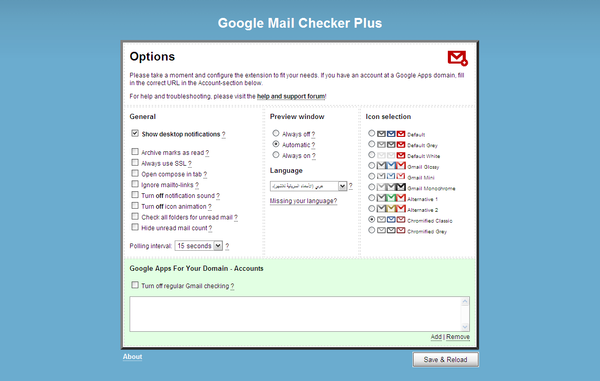
GMCP's options page offers other useful options for you to tweak. Here you can change polling interval, configure GMCP for use with Gmail on your domain, choose a different icon set, and much more. Although most of the available options here are self-explanatory, you can get a brief explanation of each option by hovering the mouse over the question mark next to each option.
comments powered by DisqusSubscribe to our Linux Newsletters
Find Linux and Open Source Jobs
Subscribe to our ADMIN Newsletters
Digital Autonomy
• The Answer Was Already on the Shelf
• Changing the Chip Industry: How Public Investment Has Grown Open Silicon
• United Nations Open Source Portal Goes Live
• EU Open Source Strategy Plays Key Role in Tech Sovereignty Package
• France Says “Au Revoir” to Microsoft
Support Our Work
Linux Magazine content is made possible with support from readers like you. Please consider contributing when you’ve found an article to be beneficial.

News
-
2,000 Vulnerabilities per Linux Release
Thanks to AI bug hunters, the Linux kernel is seeing record numbers of vulnerabilities, and it's overwhelming developers.
-
Linux Exempt from California’s Age Verification Law
So long as Linux is distributed under the GPL, MIT, BSD, and Apache licenses, the OS is exempt from being required to verify the age of its users in California.
-
Roll Out the Cake: Linux Turns 35
35 years ago, a Finnish student began a humble project that would forever change the course of technology.
-
China Switching from Windows to Linux
China has ordered several government agencies to drop a Chinese-developed version of Windows 10 in favor of either KylinOS or UOS.
-
Pine64 Halts Production of Linux Devices
With continued DRAM and eMMC shortages, Pine64 has decided to discontinue production of Linux devices.
-
The Bullet-Proof KDE Software Initiative Is Coming
KDE, Techpaladin, and Kubuntu Focus have announced a new initiative that will provide at least three years of support for KDE Plasma 6.6 LTS and related software.
-
Linux Mint Shares a Possible Kernel Cleanup Solution
For those on Linux Mint who like to keep multiple kernels around but don't want them to take up too much space, you might be getting a new automated tool.
-
CachyOS Gets an Update
CachyOS August 2026 release is now available with the latest version of KDE, some new features, and plenty of improvements.
-
The Linux Kernel Dev Staging Area Now Rejects AI-Generated Patches
Unless a kernel patch is a valid security fix, it will be rejected if it was created using AI.
-
Linux Surpasses Double-Digit Market Share
According to two sources, the Linux operating system has hit a major milestone in market share that naysayers thought would never happen.