


Managing photo collections with Album Shaper

Image Overload

© Dmitry Koksharov, Fotolia
Digicams almost completely replaced legacy cameras, and now Album Shaper offers a replacement for photo albums.
In the age of digital cameras, home computers are essential for editing and archiving photos. In fact, computers are gradually replacing the good old photo album. However, some photographers are not interested in wrangling feature-bloated applications like GIMP just to edit holiday or family snapshots. Furthermore, archiving photos in directories with a hierarchical structure is complicated.
The free Album Shaper [1] program intends to change this, letting even in-experienced users create a digital photo album in just a couple of steps. Additionally, the software offers simple image-manipulation functions, meeting users' needs while making other specialized graphics programs superfluous. In this article, I'll show you how to get started with this useful program.
Installation
Because it is a KDE application, Album Shaper requires the Qt libraries – as do Gnome and other desktop environments – to set up the software. Using your distribution's repository to install the application is the easiest method to avoid installing the Qt libraries manually and resolve other dependencies. If your distro does not include Album Shaper, you might find a suitable package online [2].
Collector's Passion
After launching the program, you will see a clear-cut – but slightly unusual-looking – interface. Album Shaper distinguishes between albums and collections. This distinction is based on the reality that a single photo album can contain holiday photos from several years. At the top of the window, start by typing a name and a description for the album and the collection.
The main panel below this is divided into two columns: The small column on the left contains a list of various collections, and the larger column on the right is reserved for the images, which Album Shaper shows as thumbnails.
To group photos in a collection, change to the Organize tab. At the bottom of the program window, now click Add images. In the file dialog that appears, choose the images you would like to add; Album Shaper will then display thumbnails of the photos in the program window. Alternatively, you can drag and drop individual photos from other applications into the organization window.
If you hover the mouse over one of the images and click on the small letter i, the program will highlight this image by displaying it at a slightly larger size than the others. If needed, you can now add a comment below the image.
Right-clicking pops up a dialog in which you can select an image as the lead image for a whole album or the current selection.
If you go to the Edit tab, the program switches to image-manipulation mode. Album Shaper has basic image-manipulation functions that let you change photo size and quality, and rotate and mirror images.
The software helps the user with intelligent functions that even some professional image-editing programs lack. For example, if you crop an image and scale it to a point that image quality suffers, the program will draw a red border around the selection.
Polishing Photos
The Color and Contrast selections in the Quality area work amazingly well. One click on the corresponding icon enables automatic color, brightness, and contrast correction. An algorithm improves the image quality automatically. In our lab, this function produced perfectly acceptable results.
Another special function that you don't often see is automatic red-eye correction: Even GIMP needs more information to be able to edit red-eye in portraits (Figure 1).
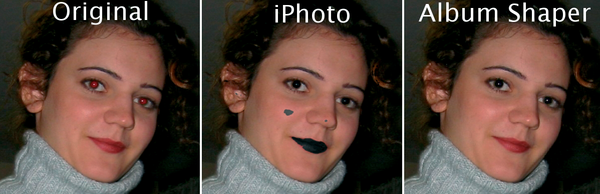 Figure 1: Automatic red-eye correction. Image courtesy of SourceForge.net.
Album Shaper performs this task without any user assistance. In our lab, the software corrected red-eye without having to select the affected areas of the image.
Also, with Album Shaper you can correct the focus and modify the color manually. Pressing the Level or Grain icons pops up a window in which you can see the current photo in its two halves. The original image is on the left, and you can verify the results of your changes on the right.
The Effects area lets users apply special effects to the photo (see Figure 2). For example, you can convert a color photo to black and white or artificially age your images by applying a Sepia effect. This makes your pictures look like images from the early days of photography. When you select an effect in the drop-down menu, a small preview helps you check the results before applying the effects.
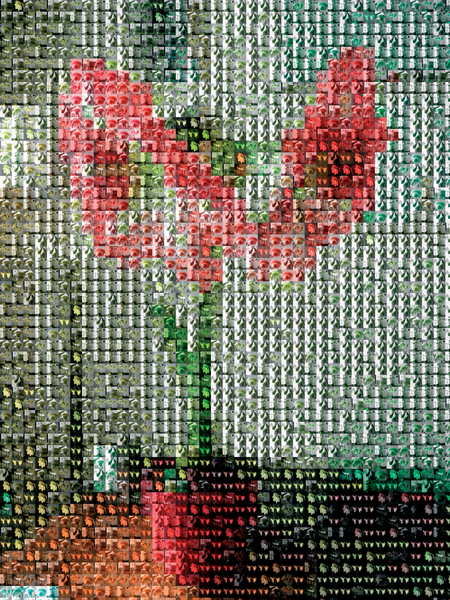 Figure 2: Mosaic effect. Image courtesy of SourceForge.net.
After modifying all the images in a collection and selecting the images you need, you can store your collection. Album Shaper does not have an internal slide show program, but it stores your photos in thumbnail format in a separate directory.
The parent directory includes an HTML file and an XML file, which allows you to view the photos in practically any web browser. In Firefox, for example, you would just open the HTML file.
This also means that you can use photo collections and albums that you create with Album Shaper on any platform. The software has a sophisticated Save dialog that lets users save their photos in visually attractive frames. Users can select a presentation template in the form of the theme and just leave Album Shaper to embed the images in it. When Album Shaper is done, you just specify where to save the HTML file.
Themes also contain ready-to-run navigational elements for browsing the photo collection (Figure 3). When you present your slide show, note that the web browser must support script execution; if it doesn't, your screen will stay blank.
 Figure 3: A slide-show view of images. Image courtesy of SourceForge.net.
Conclusions
Album Shaper offers photo fans a whole range of new options for archiving and presenting digital images in attractive frames. The program's controls are oriented on legacy photo albums and extended by adding the PC's abilities. Users will appreciate the ability to group photos topically in collections, just as in a paper album, and also enjoy the program's neat functions that help to improve image quality or apply special effects. The image manipulation features are point and click, and you do not need to be an expert in image manipulation to use them.
Album Shaper also offers an intuitive, easy-to-use interface. Inexperienced users in particular will enjoy the ability to create and share photo collections easily in Linux.
Infos
- Album Shaper: http://albumshaper.sourceforge.net/
- Binary packages for various distributions: http://www.rpmseek.com
[...]
Buy this article as PDF
(incl. VAT)
Buy Linux Magazine
Subscribe to our Linux Newsletters
Find Linux and Open Source Jobs
Subscribe to our ADMIN Newsletters
Support Our Work
Linux Magazine content is made possible with support from readers like you. Please consider contributing when you’ve found an article to be beneficial.

News
-
EU Open Source Strategy Plays Key Role in Tech Sovereignty Package
Comprehensive measures adopted by the European Commission aim to reduce dependency on non-EU countries.
-
Linux Foundation Report Indicates AI Driving Tech Hiring
Within growing security and skills gaps, AI has been found to be a positive driving force behind tech hiring trends in Europe.
-
United Nations Open Source Portal Goes Live
A new open source portal seeks to coordinate and scale open source efforts across the United Nations system.
-
KDE Linux Drops AUR
KDE Linux developers have dropped the Arch User Repository from the build pipeline due to security concerns; other distributions should consider doing the same.
-
California May Exempt Linux from Its Age-Verification Law
After backlash from the Linux community, California may be backing off on its promise to force all operating systems to verify age, but one platform may still have to comply.
-
Another Logic Bug Found in Linux Kernel
Qualys has discovered a vulnerability in the Linux kernel that can be used to elevate standard user privileges.
-
Ubuntu Core 26 Offers Game-Changing Enterprise Features
Ubuntu Core 26 could be a game-changer for organizations looking for increased security and reliability.
-
AI Flooding the Linux Kernel Security Mailing List
AI is giving Linus Torvalds a headache, but not in the way you might think.
-
Top Priorities for Open Source Pros Seeking a New Job
Professional fulfillment tops the list, according to LPI report.
-
Container-Based Fedora Hummingbird Designed for Agent-First Builders
Fedora Hummingbird brings the same approach to the host OS as it does to containers to level up security.