


Avoid Typing with Autokey

Productivity Sauce
Imagine how much time you could save if you had a tool that could help you to avoid typing static text like "Kind regards" or your address. Like the idea? Then you'll most certainly appreciate the Autokey text expanding utility. The current version of Autokey is distributed as a tarball archive, and it requires a few additional Python packages: python-gamin, python-xlib, and python-configobj. On Ubuntu-based distros, you can install them using the following apt-get install command:
sudo apt-get install python-gamin python-xlib python-configobj
Download and unpack then the Autokey archive, move the resulting directory into your home folder, and use the autohot.sh script to launch the application:
sh ./autokey.sh
Autokey sports a rather simple two-pane interface. The Folders and Phrases pane allows you to group text snippets, or phrases, into folders. By default, Autokey contains two folders: My Phrases (with the Addresses subfolder) and Tray Phrases. You can, of course, add your own folders and subfolders using the File -> New Top-Level Folder and File -> New Folder commands.
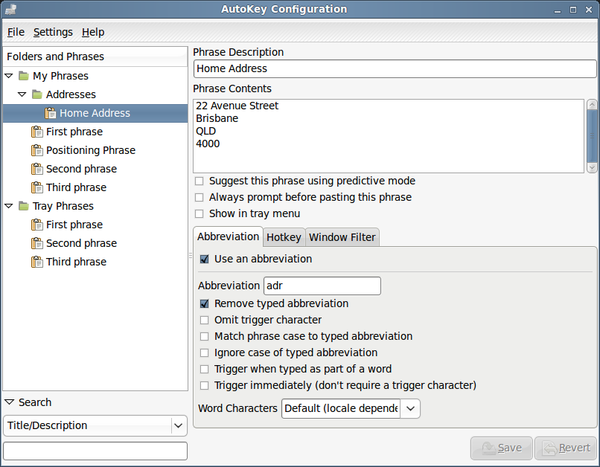
To create a new phrase, select the folder you want and choose File -> New Phrase. In the right pane, give the phrase a descriptive name in the Phrase Description field and enter the desired text in the Phrase Contents field. Next you have to specify a trigger which inserts the given phrase. If you tick the Show in tray menu check box, the phrase becomes accessible via Autokey's tray menu. Another option is to specify an abbreviation for the specific phrase, so when you type, for example, "addr", Autokey replaces it with the related phrase. To do this, tick the Use an abbreviation check box and enter the desired abbreviation in the Abbreviation field. Alternatively, you can specify a keyboard shortcut that triggers the phrase. Switch to the Hotkeys section, tick the Use a hotkey check box, and define the desired hotkey. In addition to that, you can set up a window filter to trigger the phrase only in a specific application. For example, if you want to use the phrase only when you work in OpenOffice.org Writer, you can specify the .* - OpenOffice.org Writer filter in the Window Filter section. Besides conventional text snippets, Autokey allows you to specify so-called macros which can insert the current date and time or execute a shell command.
The Folders and Phrases pane also contains the default Tray Phrases folder. As the name suggests, all phrases in this folder appear in the Tray Phrases menu in the tray icon. Finally, to make it easier to quickly find the phrase you want in the Folder and Phrases pane, there is also the Search field. Using it, you can find the phrase by its title and description, or by its abbreviation.
Comments
comments powered by DisqusSubscribe to our Linux Newsletters
Find Linux and Open Source Jobs
Subscribe to our ADMIN Newsletters
Support Our Work
Linux Magazine content is made possible with support from readers like you. Please consider contributing when you’ve found an article to be beneficial.

News
-
Hannah Montana Linux Is Back!
Developer Noah Cagle decided the world needed the once obscure but beloved Linux distribution and gave it a decidedly pink refresh.
-
System76 Refreshes the Lemur Laptop
If you're looking for a laptop with tons of power and battery, look no further than the latest iteration of the System76 Lemur Pro.
-
More than 43 Million Lines of Code in Linux Kernel 7.2
Using the cloc utility, Michael Larabel of Phoronix discovered that Linux kernel 7.2 has over 43 million lines of code.
-
Kubuntu Focus Goes Ultra
The Kubuntu Focus team has upped the performance ante of its M2 and Zr laptops with the latest, greatest CPUs from Intel.
-
Linux Gamers May Soon See Less Mouse Lag in KDE Plasma
Gamers using KDE’s Plasma desktop have been suffering from a slight input delay in mouse movement that could lead to getting fragged.
-
Three Lines of Code Improve Linux Storage Performance
A developer changed three lines of code, giving Linux storage performance a 5% bump.
-
AUR Hit Again with Malicious Packages
Once again the Arch User Repository is plagued by a high volume of malicious packages.
-
Alpine Linux 3.24 Features Fresh Desktops and a Newer Kernel
If you're a fan of Alpine Linux, it's time to upgrade because the latest version has been released with KDE Plasma 6.6, Gnome 50, and Linux kernel 6.18 LTS.
-
EU Open Source Strategy Plays Key Role in Tech Sovereignty Package
Comprehensive measures adopted by the European Commission aim to reduce dependency on non-EU countries.
-
Linux Foundation Report Indicates AI Driving Tech Hiring
Within growing security and skills gaps, AI has been found to be a positive driving force behind tech hiring trends in Europe.
Alternatives
xautomation-1.01
and
xnee-2.05
Xnee, while not finished, has VERY big potential (and GUI ;P), and for basic tasks is great (it's recording time of events even!), I'm using it now.
I've added the replay of recorded actions to the standard Gnome command_action_1 (or whatever is called)
And works nice.
xautomation is more limited (or I am :P)
Thanks
I've been looking to such a program for a long time, thanks for the hint...
Under Windows I use Autohotkey, but until now I haven't found a nice alternative under Linux...
why not keep it simple?
In my day job where WinXP is unavoidable, i became used to text replacement applications like Shortkeys and the even better Texter, and i am quite happy with especially the last mentioned. Texter is very straightforward, you enter the strings and the text used to replace them after triggering them, and that's it. I haven't found anything as simple and useful under Linux yet.
Autokey doesn't even come close, unfortunately. I never managed to get it to run under WindowMaker, and i really don't want to switch to Gnome. Furthermore, the overly complex configuration interface is not at all userfriendly. I'd rather prefer something as straightforward and maybe even simpler to configure as Texter.