


Manage Tasks on Android with SimpleDo

Productivity Sauce
There are dozens of tasks managers on the Android Market, but SimpleDo rules them all. Why? Because it combines simplicity and versatility.
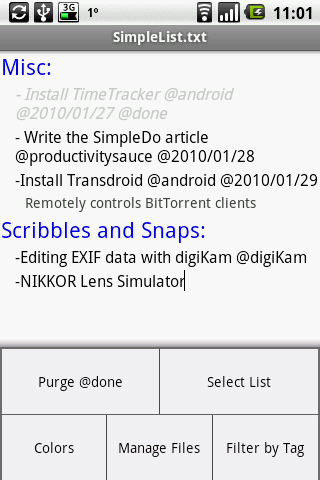
SimpleDo is inspired by the TaskPaper tool which stores task data in a plain text file. Similar to TaskPaper, SimpleDo uses easy-to-remember formatting to recognize and format tasks. Each task in SimpleDo starts with a hyphen and any text entered on a new line is treated as a note. You can tag tasks using the @ character; for example, @work, @home, @writing, etc. When you add the @done tag to the task, SimpleDo marks it as completed. Instead of adding the @done tag manually, you can swipe your finger from left to right across the task. To assign a date to the task, double-click on it and choose the set date command. The task manager lets you group tasks into projects. To create a new project, enter its name followed by a colon (:). SimpleDo can handle multiple lists, so, you can, for example, keep your work and private tasks in separate lists. To create a new list, press the Menu button, choose Manage Files, and press the create a list button. You can then switch between different lists using the Menu -> Select List command. To back up your lists, press the Menu button, choose Manage Files, select the lists you want to back up, and press the export selected files to your sdcard button.
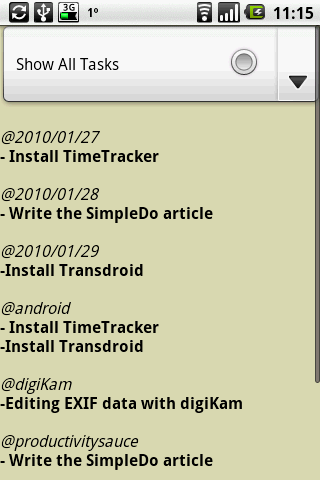
The Menu -> Filter by Tag command lets you view all your tasks grouped by tags. Here you can use the tag filter to display tasks containing a specific filter.
While SimpleDo doesn't have all the bells and whistles of other task managers, it's its simplicity that makes it such a great app. SimpleDo's straight-to-the-point design lets you focus on managing your tasks instead of wasting time on learning features you might never use. Now if only it had a synchronization feature...
comments powered by DisqusSubscribe to our Linux Newsletters
Find Linux and Open Source Jobs
Subscribe to our ADMIN Newsletters
Support Our Work
Linux Magazine content is made possible with support from readers like you. Please consider contributing when you’ve found an article to be beneficial.

News
-
EU Open Source Strategy Plays Key Role in Tech Sovereignty Package
Comprehensive measures adopted by the European Commission aim to reduce dependency on non-EU countries.
-
Linux Foundation Report Indicates AI Driving Tech Hiring
Within growing security and skills gaps, AI has been found to be a positive driving force behind tech hiring trends in Europe.
-
United Nations Open Source Portal Goes Live
A new open source portal seeks to coordinate and scale open source efforts across the United Nations system.
-
KDE Linux Drops AUR
KDE Linux developers have dropped the Arch User Repository from the build pipeline due to security concerns; other distributions should consider doing the same.
-
California May Exempt Linux from Its Age-Verification Law
After backlash from the Linux community, California may be backing off on its promise to force all operating systems to verify age, but one platform may still have to comply.
-
Another Logic Bug Found in Linux Kernel
Qualys has discovered a vulnerability in the Linux kernel that can be used to elevate standard user privileges.
-
Ubuntu Core 26 Offers Game-Changing Enterprise Features
Ubuntu Core 26 could be a game-changer for organizations looking for increased security and reliability.
-
AI Flooding the Linux Kernel Security Mailing List
AI is giving Linus Torvalds a headache, but not in the way you might think.
-
Top Priorities for Open Source Pros Seeking a New Job
Professional fulfillment tops the list, according to LPI report.
-
Container-Based Fedora Hummingbird Designed for Agent-First Builders
Fedora Hummingbird brings the same approach to the host OS as it does to containers to level up security.