


The de facto Linux sound-mixing system
Music Setup
Although PipeWire is designed to simplify audio set up, having a fully working music setup requires some manual configuration of settings. The first stage to setting up a stable music system in Linux is to put the CPU into the correct power management mode.
Most Linux distributions set the CPU to ondemand ("on demand") mode by default, which means that the CPU is constantly throttling itself by reducing the frequency of its cores. This is a nightmare for audio processing, which requires precise timing. Even some games will exhibit stuttering audio when the CPU is in ondemand mode.
I will use the cpupower package to manage the CPU frequency governor. You'll find cpupower in the package repository of most distributions, if it's not already installed on your system. To determine your CPU's current power-saving policy, type
cpupower frequency-info
Most likely, it's in ondemand mode.
For a stable, performant music system, put the CPU into performance mode by typing the following at the command line:
sudo cpupower frequency-set -g performance
Because you'll have to do this on a regular basis, it's a good idea to put that line into a one-line Bash script file. You can use any text editor to do this. Save it under a filename such as cpu_performance.sh, and make it executable by typing the following at the command line:
chmod + x cpu_performance.sh
When you run this script (by typing ./cpu_performance.sh), it will prompt you for your sudo password as it's making changes to the computer's hardware.
You can create another version of this script containing the line
sudo cpupower frequency-set -g ondemand
for returning your CPU back to power-saving mode. There is no need to run your computer in performance mode for general computer tasks; this is particularly true if you are working with a laptop.
It's worth noting that there are GUI tools such as cpupower-gui (Figure 2) [2] that can change the CPU governor mode.
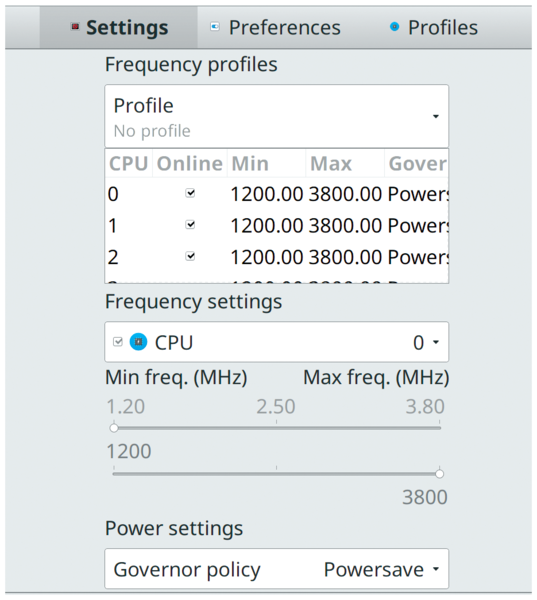 Figure 2: A GUI tool like cpupower-gui can change your CPU's governor mode.
PipeWire for Pro Audio
Professional audio applications include music applications such as Ardour [3] and Qtractor [4] along with audio editors such as Audacity [5] for making podcasts. JACK is the audio system that's designed for professional audio work. It offers much lower latency than PulseAudio, along with better routing options. For these reasons, most music programs directly support JACK. Because PipeWire emulates JACK, all JACK-aware applications and utilities should work as normal, even though they are really being routed through PipeWire.
Given the speed of modern CPUs, you could easily underestimate the amount of CPU power required for audio processing, but each audio sample has to be played back at precisely the right moment, which is why it's so taxing on the CPU. For 48kHz audio, a sample must be played back 48,000 times per second for a mono audio track. Multiple stereo audio streams further add to the CPU workload.
For this reason, the emulated PipeWire JACK environment tends to be shipped with rather conservative settings balanced for general purpose use. The default latency won't be low enough to play instruments in real time from within a music program. The default settings are a 48kHz sample rate and a buffer size of 1,024. If you divide 48 by 1,024, this gives a latency of 21ms, which is a bit slow and results in a noticeable delay.
Setting the Latency
Thankfully, it's not too difficult to set things up for real-time playback within PipeWire. Start by entering the following at the command line:
pw-metadata -n settings 0 clock.force-quantum 256
This sets a buffer size (a "quantum" in PipeWire jargon) of 256, giving a latency of around 5.3ms. This latency is suitable for playing instruments. Test your choice of music program with this setting to see how your computer performs. If your computer can handle this setting, there should be no unacceptable CPU spikes or audio drop outs.
If you are processing audio in real time, you might need an even lower buffer size, and most audio programs will tolerate changing PipeWire's settings while they are running. This gives you the scope to experiment.
For example, if you are playing an electric guitar directly into your audio interface and applying effects to it, you will probably notice a 5.3ms delay between plucking the string and hearing the sound. A buffer size of 128 is a good bet for this type of audio work, and most reasonably up-to-date computer hardware can handle it. It's impossible to calculate precise latencies at this level because there are a few overheads with the computer's hardware and software processing, but this gives a latency of around 2.6ms, which is really low. To put this into context, this is the audio delay that you would experience when standing about one meter away from a speaker. However, you will notice an increase in CPU usage the lower you set the buffer size.
« Previous 1 2 3 4 Next »
Buy this article as PDF
(incl. VAT)
Buy Linux Magazine


US / Canada
UK / Australia
Subscribe to our Linux Newsletters
Find Linux and Open Source Jobs
Subscribe to our ADMIN Newsletters
Support Our Work
Linux Magazine content is made possible with support from readers like you. Please consider contributing when you’ve found an article to be beneficial.

News
-
Linux Mint 22.3 Now Available with New Tools
Linux Mint 22.3 has been released with a pair of new tools for system admins and some pretty cool new features.
-
New Linux Malware Targets Cloud-Based Linux Installations
VoidLink, a new Linux malware, should be of real concern because of its stealth and customization.
-
Say Goodbye to Middle-Mouse Paste
Both Gnome and Firefox have proposed getting rid of a long-time favorite Linux feature.
-
Manjaro 26.0 Primary Desktop Environments Default to Wayland
If you want to stick with X.Org, you'll be limited to the desktop environments you can choose.
-
Mozilla Plans to AI-ify Firefox
With a new CEO in control, Mozilla is doubling down on a strategy of trust, all the while leaning into AI.
-
Gnome Says No to AI-Generated Extensions
If you're a developer wanting to create a new Gnome extension, you'd best set aside that AI code generator, because the extension team will have none of that.
-
Parrot OS Switches to KDE Plasma Desktop
Yet another distro is making the move to the KDE Plasma desktop.
-
TUXEDO Announces Gemini 17
TUXEDO Computers has released the fourth generation of its Gemini laptop with plenty of updates.
-
Two New Distros Adopt Enlightenment
MX Moksha and AV Linux 25 join ranks with Bodhi Linux and embrace the Enlightenment desktop.
-
Solus Linux 4.8 Removes Python 2
Solus Linux 4.8 has been released with the latest Linux kernel, updated desktops, and a key removal.