


Exploring the OpenWrt router OS
Backup and Restore
OpenWrt allows users to backup the configuration (Figure 6), entire partitions, and flash a new firmware image. Select System | Backup / Flash Firmware.
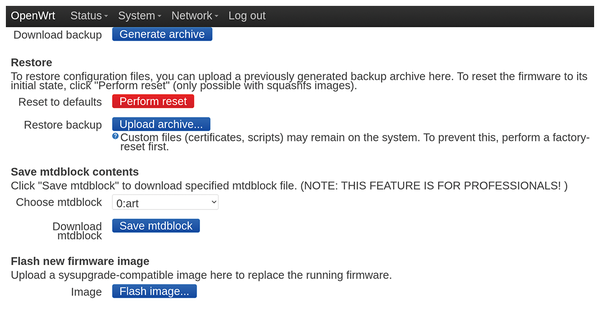 Figure 6: OpenWrt backup and restore menu
The partition backup is the most interesting and most advanced feature: It allows you to backup any partition from NAND or flash storage. The restore is possible only from the command line. I recommend that you copy the ART partition first – this partition contains personal factory calibration for device radios. This data is individual for each router and can't be copied from another device. Generally, it's a good idea to backup all partitions just in case and archive them into a modern and effective archive format such as Zstandard (zstd).
You can copy and restore flash drive partitions using the classic Unix tool dd (Disk Destroyer), however, NAND drives require special tools: nanddump and nandwrite. The partition dump from the terminal shouldn't be a problem:
nanddump --file /tmp/mtd4.nanddump /dev/mtd4
Restore with
nandwrite /dev/mtd4 /tmp/mtd4.nanddump
Make sure to double-check filenames and paths; a mismatch can put the device into a non-working state. More information is available in the official documentation [7].
Package Manager and Firmware
Like a traditional Linux distribution, OpenWrt has a package manager for installing, updating, removing, and other software-related tasks. Up to the 24.10 release, OpenWrt used opkg, but the developers decided to switch to apk – Alpine Linux's default package manager. Alpine is very popular as a Docker container base skeleton due to its minimalism. The apk package manager is fast and written in the C programming language, which makes it a good choice for OpenWrt. Table 1 shows a comparison of the apk and opkg package managers.
Table 1
OpenWrt Package Management Tools
| Apk | Opkg | Description |
|---|---|---|
| apk update |
opkg update |
Refresh the package feeds |
| apk add pkg |
opkg install pkg |
Install package pkg |
| apk del pkg |
opkg remove pkg |
Uninstall package pkg |
| apk list pkg |
opkg list pkg |
Show matches for package pkg, regex is also supported |
| apk list --installed [pkg] |
opkg list-installed |
Show all installed or those matching pkg |
| apk list --providers [pkg] |
opkg -A whatprovides pkg |
Show all packages that provide pkg package |
| apk info pkg |
opkg info pkg |
Show summary information for the package pkg |
| apk info --all pkg |
- |
Show full information about the package |
| apk info --contents pkg |
opkg files pkg |
Show files contained in the package |
| apk info --depends pkg |
opkg depends pkg |
Show all packages that pkg depends upon |
| apk info --rdepends pkg |
opkg whatdepends pkg |
Show all packages that depend upon pkg package |
The OpenWrt rootfs partition, which holds the system files, uses the Squashfs compressed, read-only filesystem. All installed or removed packages are located in different partitions that are formatted in OverlayFS. This overlay will increase its space after each package install or removal, so upgrading all packages will take all the space of the overlay. It makes sense to install a few additional packages and use a full upgrade or make massive image changes only inside a virtual machine or a container environment.
An OpenWrt firmware upgrade could be very different because there are many options for how to do it. See the box entitled "Firmware Update Options."
Firmware Update Options
You have several choices for how to perform a firmware update, including:
- Traditional upgrade – Upload new firmware using the web interface or run the
sysupgradecommand in the console. Then, restore the configuration backup if needed. This approach works well if there are no extra packages installed; extra packages need to be reinstalled after each upgrade – not a very comfortable solution. - Firmware Selector [8] – a great OpenWrt service that is capable of building customized firmware with different package sets and even built-in boot scripts that can perform useful tasks at system startup. One slight complication is that the user needs to use the Firmware Selector again after each new OpenWrt release.
- Attended Sysupgrade (on Figure 7) – this service simplifies the upgrade process to a few clicks, even with additional packages and custom configuration. If LuCI isn't an option, Attended Sysupgrade also works in the terminal thanks to
auccommand: There is also an alternative console tool calledowutfor upgrading the firmware:
owut upgrade --version-to=24.10.5
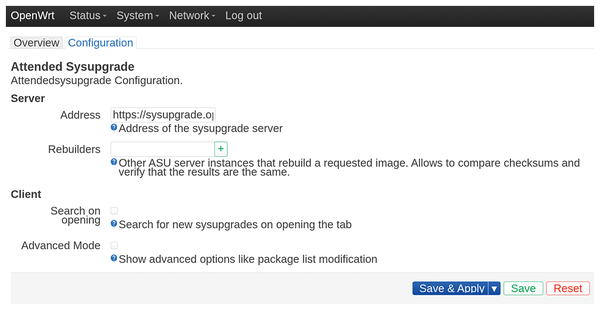 Figure 7: Attended Sysupgrade configuration.
Secure DNS in OpenWrt
Many network devices, including routers, still use classic DNS that works in plain-text mode without any encryption. This is great for Internet providers, governments, or hackers to monitor user network activity or even change DNS traffic for website blocking and other harmful or malicious behavior. There are two popular DNS protocols that provide encryption support: DNS-over-HTTPS (DoH) and DNS-over-TLS (DoT). DoH sends DNS queries over HTTPS, similar to a web browser – this option is great for privacy because it's harder to detect DNS traffic inside a waterfall of general web traffic. DoT encrypts traffic using TLS and uses port 853 for encrypted communication with DNS servers. Check Listing 1 for DoH setup details.
Listing 1
DoH Secure DNS in OpenWrt
# Install the required package
opkg update && opkg install https-dns-proxy
# Test the domain resolution using nslookup - you should see the IP address:
nslookup openwrt.org localhost
# Default DNS services are Google DNS and Cloudflare DNS
# The next command will set Quad9 DNS as the default:
uci set https-dns-proxy.dns.bootstrap_dns="9.9.9.9,149.112.112.112"
uci set https-dns-proxy.dns.resolver_url="https://dns.quad9.net/dns-query"
uci commit https-dns-proxy
service https-dns-proxy restart
Buy this article as PDF
(incl. VAT)
Buy Linux Magazine
Subscribe to our Linux Newsletters
Find Linux and Open Source Jobs
Subscribe to our ADMIN Newsletters
Digital Autonomy
• How the Fediverse Found Parts for Its Platforms
• The Answer Was Already on the Shelf
• Changing the Chip Industry: How Public Investment Has Grown Open Silicon
• United Nations Open Source Portal Goes Live
• EU Open Source Strategy Plays Key Role in Tech Sovereignty Package
• France Says “Au Revoir” to Microsoft
Support Our Work
Linux Magazine content is made possible with support from readers like you. Please consider contributing when you’ve found an article to be beneficial.

News
-
openKylin 3.0 Released with Expanded AI Integration
The latest release features a pre-installed AI agent to help perform tasks.
-
DigitalOcean Ends Open Source Credits Program
In a change that has surprised many open source developers, DigitalOcean has decided to sunset its Open Source Credits Program.
-
Office 365 Available for Testing on Linux via Bottles
Linux users can now test the official Office 365, thanks to Mirko Brombin's work on Bottles.
-
Dutch Government Turns to Open Source for Digital Sovereignty
Following in the footsteps of other European countries, the Netherlands is looking to increase its sovereign digital infrastructure with open source software.
-
Linux May Soon Work on Snapdragon X2-Based PCs
If you're thinking about buying a Snapdragon X2-based desktop or laptop, Linux may soon be an option.
-
KDE for People Initiative Calls for AI Ban in Plasma
A new community of KDE wants the project to adopt a strict no-AI policy for KDE Plasma.
-
KDE Sets Ambitious Goals for 2026 and Beyond
KDE Connect reveals the goals for the Linux desktop darling, with one of those goals long overdue.
-
It’s Time to Test Fedora 45 Beta
Fedora 45 beta has been released with updated Gnome, KDE Plasma, and kernel.
-
Ubuntu Stonking Stingray Gets Even Rustier
Ubuntu 26.10 has completed its migration to the Rust-based coreutils.
-
AI Fixes Linux Bottlenecks Using “Hideous” Code
A Linux developer used AI to fix bottlenecks that caused problems when building the kernel. The resulting AI-generated code needed a lot of work.