


Exploring the OpenWrt router OS
LED Configuration
Many routers have built-in LED indicators. Some of these indicator lights (mostly routers promoted for gaming) support different LED modes. There are two ways to configure the indicators: graphically, as shown in Figure 9, or via the console. If you're using the console, the configuration is located in the /etc/config/system file. The simpler graphical method helps you select the desired LED indicator and add triggers, such as always on or off. You can highlight network activity with a blinking interval or create a custom flash interval.
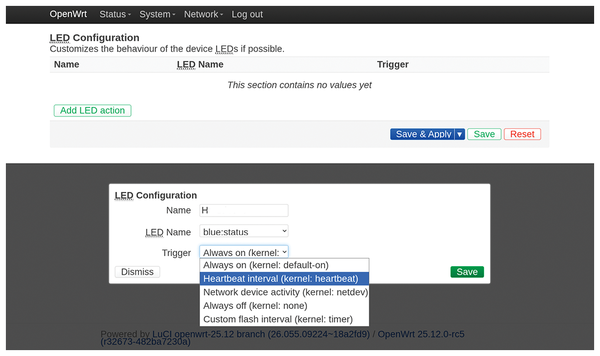 Figure 9: LED modes in OpenWrt.
MAC Randomization
Every network interface has its own 48-bit MAC address. OpenWrt lets you generate a random MAC addresses for Ethernet, wireless, and virtual network interfaces. The configuration details are provided in Listing 3.
Listing 3
Random MAC Addresses Setup for OpenWrt
# /etc/config/network - for wired interfaces
config device
        option name 'lan1'
        option macaddr 'random'
config device
        option name 'lan2'
        option macaddr '00:11:22:33:44:55'
config device
        option name 'lan3'
        option macaddr 'random'
# warning - some ISPs don't allow random MAC addresses,
# in this case, it's better to use any non-default address
config device
        option name 'wan'
        option macaddr 'random'
# /etc/config/wireless - for wireless interfaces
# add the last line to the end of the target wifi-device section
config  wifi-device      'wl0'
        option  type    'broadcom'
        ...
        option  macaddr 'random'
Wireguard VPN Setup in OpenWrt
A VPN client on a router has one major advantage: It can share the VPN connection with all the devices on the local network. You won't need to set up a separate VPN on each of the devices. You also get extra security and privacy, as well as the ability to bypass regional restrictions and escape censorship. Assuming you already have your WireGuard configuration from a VPN provider or your own self-hosted server, the details for setting up a WireGuard connection are in Listing 4.
Listing 4
Wireguard Client Setup
# Install the required package
apk add wireguard-tools
# Use environment variables to save connection parameters
# These can be obtained from a VNP provider's website or from a configuration file
# The port 51820 is default, VPN_ADDR6 can be skipped if there's no IPv6 endpoint
VPN_IF="wg";  VPN_SERV="SERVER_ADDRESS";  VPN_PORT="51820";
VPN_ADDR="192.168.9.2/24";  VPN_ADDR6="fd00:9::2/64"
# Enter the keys - private, pre-shared (if available), public
# or use  cat command if the keys are located in files
VPN_KEY="paste the key here"
VPN_PSK="$(cat wgclient.psk)"
VPN_PUB="$(cat wgserver.pub)"
# Firewall setup - add wg interface to WAN zone
uci rename firewall.@zone[0]="lan"
uci rename firewall.@zone[1]="wan"
uci del_list firewall.wan.network="${VPN_IF}"
uci add_list firewall.wan.network="${VPN_IF}"
uci commit firewall && service firewall restart
# Network interface setup
uci -q delete network.${VPN_IF}
uci set network.${VPN_IF}="interface"
uci set network.${VPN_IF}.proto="wireguard"
uci set network.${VPN_IF}.private_key="${VPN_KEY}"
uci add_list network.${VPN_IF}.addresses="${VPN_ADDR}"
uci add_list network.${VPN_IF}.addresses="${VPN_ADDR6}"
# Add Wireguard peers
uci -q delete network.wgserver
uci set network.wgserver="wireguard_${VPN_IF}"
uci set network.wgserver.public_key="${VPN_PUB}"
uci set network.wgserver.preshared_key="${VPN_PSK}"
uci set network.wgserver.endpoint_host="${VPN_SERV}"
uci set network.wgserver.endpoint_port="${VPN_PORT}"
uci set network.wgserver.persistent_keepalive="25"
uci set network.wgserver.route_allowed_ips="1"
uci add_list network.wgserver.allowed_ips="0.0.0.0/0"
uci add_list network.wgserver.allowed_ips="::/0"
# Verify and activate the Wireguard connection
uci commit network && service network restart
# Make sure the routing is correct:
traceroute openwrt.org
OpenWrt also provides support for OpenVPN [10], but WireGuard has lower latency and higher speed. VPN speed depends on the router's CPU, the ISP, and the physical distance to the server, as well as the current network load. If a fast VPN is critical, make sure to choose a router with two or four processors and a high frequency.
Buy this article as PDF
(incl. VAT)
Buy Linux Magazine
Subscribe to our Linux Newsletters
Find Linux and Open Source Jobs
Subscribe to our ADMIN Newsletters
Digital Autonomy
• How the Fediverse Found Parts for Its Platforms
• The Answer Was Already on the Shelf
• Changing the Chip Industry: How Public Investment Has Grown Open Silicon
• United Nations Open Source Portal Goes Live
• EU Open Source Strategy Plays Key Role in Tech Sovereignty Package
• France Says “Au Revoir” to Microsoft
Support Our Work
Linux Magazine content is made possible with support from readers like you. Please consider contributing when you’ve found an article to be beneficial.

News
-
openKylin 3.0 Released with Expanded AI Integration
The latest release features a pre-installed AI agent to help perform tasks.
-
DigitalOcean Ends Open Source Credits Program
In a change that has surprised many open source developers, DigitalOcean has decided to sunset its Open Source Credits Program.
-
Office 365 Available for Testing on Linux via Bottles
Linux users can now test the official Office 365, thanks to Mirko Brombin's work on Bottles.
-
Dutch Government Turns to Open Source for Digital Sovereignty
Following in the footsteps of other European countries, the Netherlands is looking to increase its sovereign digital infrastructure with open source software.
-
Linux May Soon Work on Snapdragon X2-Based PCs
If you're thinking about buying a Snapdragon X2-based desktop or laptop, Linux may soon be an option.
-
KDE for People Initiative Calls for AI Ban in Plasma
A new community of KDE wants the project to adopt a strict no-AI policy for KDE Plasma.
-
KDE Sets Ambitious Goals for 2026 and Beyond
KDE Connect reveals the goals for the Linux desktop darling, with one of those goals long overdue.
-
It’s Time to Test Fedora 45 Beta
Fedora 45 beta has been released with updated Gnome, KDE Plasma, and kernel.
-
Ubuntu Stonking Stingray Gets Even Rustier
Ubuntu 26.10 has completed its migration to the Rust-based coreutils.
-
AI Fixes Linux Bottlenecks Using “Hideous” Code
A Linux developer used AI to fix bottlenecks that caused problems when building the kernel. The resulting AI-generated code needed a lot of work.