


Keep Your Data Safe with rsync Backup for Android

Productivity Sauce
Android users who rely on the rsync utility to keep their data safe on Linux will most definitely appreciate the rsync Backup for Android app which endows an Android device with some serious backup powers. Of course, to make use of this nifty app, you need a Linux-based machine running the openSSH server. Also, if you plan to perform backups outside your local network, you need to make the machine accessible from the Internet. Moreover, the rsync Backup app doesn't include the rsync binaries, so during the first run it prompts you to download them to your Android device.
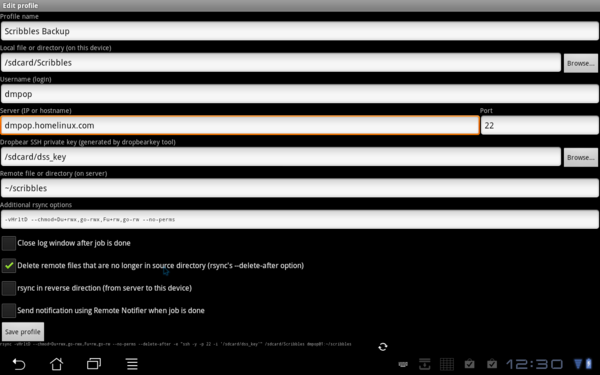
Unlike rsync on Linux, the rsync Backup app offers a simple graphical interface for configuring backup profiles. But before you set up a backup job on your Android device, you have to generate an encryption key pair, and the app comes with a built-in feature that allows you to do that with relative ease. Press the hardware Menu button and tap on Generate Keys. Once the keys have been generated, you need to add the public key to the backup machine. On your Android device, open the /sdcard/dss_key.pub file in a text editor and copy the contents of the file. Next, use the ConnectBot app to connect to the backup server, and use the nano ~/.ssh/authorized_keys command to open the authorized_keys file in the nano text editor. Paste then the public key at the end of the file, then save and close it.
Now you can set up a backup profile. Press the Menu hardware button and tap on Add Profile. Fill out the required fields, including the path to the directory on your Android device you want to back up, user name, server address or host name, the path to the encryption key (/sdcard/dss_key), and the destination directory. In the Additional rsync options field, you can specify other parameters. By default, rsync Backup backs up files from your Android device to the destination machine. But you can change the direction by ticking the rsync in reverse check box. Save the profile, and you are done. To run the configured backup job, tap on it and you can monitor the progress in the log window.
Comments
comments powered by DisqusSubscribe to our Linux Newsletters
Find Linux and Open Source Jobs
Subscribe to our ADMIN Newsletters
Digital Autonomy
• How the Fediverse Found Parts for Its Platforms
• The Answer Was Already on the Shelf
• Changing the Chip Industry: How Public Investment Has Grown Open Silicon
• United Nations Open Source Portal Goes Live
• EU Open Source Strategy Plays Key Role in Tech Sovereignty Package
• France Says “Au Revoir” to Microsoft
Support Our Work
Linux Magazine content is made possible with support from readers like you. Please consider contributing when you’ve found an article to be beneficial.

News
-
Office 365 Available for Testing on Linux via Bottles
Linux users can now test the official Office 365, thanks to Mirko Brombin's work on Bottles.
-
Dutch Government Turns to Open Source for Digital Sovereignty
Following in the footsteps of European countries, the Netherlands is looking to increase its sovereign digital infrastructure with open source software.
-
Linux May Soon Work on Snapdragon X2-Based PCs
If you're thinking about buying a Snapdragon X2-based desktop or laptop, Linux may soon be an option.
-
KDE for People Initiative Calls for AI Ban in Plasma
A new community of KDE wants the project to adopt a strict no-AI policy for KDE Plasma.
-
KDE Sets Ambitious Goals for 2026 and Beyond
KDE Connect reveals the goals for the Linux desktop darling, with one of those goals long overdue.
-
It’s Time to Test Fedora 45 Beta
Fedora 45 beta has been released with updated Gnome, KDE Plasma, and kernel.
-
Ubuntu Stonking Stingray Gets Even Rustier
Ubuntu 26.10 has completed its migration to the Rust-based coreutils.
-
AI Fixes Linux Bottlenecks Using “Hideous” Code
A Linux developer used AI to fix bottlenecks that caused problems when building the kernel. The resulting AI-generated code needed a lot of work.
-
Advanced Video Coding Still Under Patent
Brazilian patent BRPI0109962B1 has expired, which means that DivX and Xvid are no longer problematic for Linux, but it doesn’t mean that video is all of a sudden fully unleashed.
-
2,000 Vulnerabilities per Linux Release
Thanks to AI bug hunters, the Linux kernel is seeing record numbers of vulnerabilities, and it's overwhelming developers.
relies on hard IP address details
the other end of the connection. In most home LAN environs, that number changes during DHCP
negotiations when the other end joins the LAN.
For those with exactly one save-everything profile, making one edit may not be too much trouble.
However, if you have multiple profiles: save photos here, music there, documents elsewhere, etc.
you then must edit all of them individually. It might be better to have dialog outside of the profiles
where one configures "mother ship" connections and assigns a name. Then the move-files
profiles could use that name each time and the edit happens in exactly one place.
Eager for this to get better,
~~~ 8d;-/ Dan
blink ... blink ... nothing
The screen blinks, there are colors and some white streaks that might
be text or other badly broken dialog parts, then I'm back at the list of
profiles screen. No log. No messages. No complaints. Just blink blink done.
A serious flaw.
I was thrilled to learn that this was available. I rushed to load the rsync_for_Android app.
I was disappointed the learn that it needed a handful of other apps.
I was upset that it required its own file manager app and would not use what I have already installed.
(Now any time something wants a file manager I get a pick-one dialog. Making matters worse,
I cannot set a default then the rsync app is not happy.) Serious flaw, too.
Lastly, one can hardly call something "backup for android" when the app does not include
a pre-configured "profile" or similar that will capture contacts and calendar and photos
and downloads (music or otherwise). Any other files or folders is then lagnaippe but
the core data is preserved out of the box.
Eager to get this working someday,
~~~ 8d;-/ Dan