


Managing Systems and Applications with pyinfra
How Does It All Work?
This is a straightforward example, but as you add tasks, hosts, and groups, things can become quite complex to comprehend. Thus, it's helpful to step back and examine how pyinfra works behind the scenes when you run a deploy. You can find some clues about this from observing the output that pyinfra gives when you run a deploy.
The first message you see is Loading config…. During this stage, pyinfra loads a config.py file. This is the perfect place for performing preparatory actions before deployment. For instance, if you use pyinfra to deploy binaries to your machines that you first need to compile from their source code, you could place local.shell operations in this file to locally execute the necessary compilation commands.
Following this, preceded by the message Loading inventory…, pyinfra loads your inventory along with group and host data. As indicated by Connecting to hosts…, pyinfra then connects to all targets defined in the inventory. If you use password authentication for these targets or if you haven't set up an SSH agent for key-based authentication, you'll be asked for the password or passphrase for every target. If you used the --same-sudo-password option, you'll be asked for the sudo password as well. After this, pyinfra shows the connection status of all targets: whether it could connect or an error message when it failed to connect. If it failed to connect to one or more hosts, it asks whether you want to continue.
Then, as shown by Preparing operation files…, pyinfra prepares your deploy. This involves detecting the required changes to make the remote state match the stated defined in your deploy, followed by determining the operation order. If you didn't use the --same-sudo-password option, those passwords will be requested now. After pyinfra's analysis, the detected changes for each operation are shown in a table. After reviewing whether those changes appear sensible, press Enter to execute the changes on the targets.
After the message Beginning operation run…, pyinfra starts running the operations on all targets concurrently. That is, each operation runs on all relevant hosts in parallel, until all hosts have completed the operation. Then pyinfra shows the name of the operation, noting each target's status: whether changes have been made, no changes were required because the current state already matched the desired state, or whether the operation was skipped because you didn't ask to run it on the target. Only then does pyinfra move on to the next operation.
At the end, pyinfra shows the results in a table: for each operation, the number of hosts it ran on and the number of times each operation resulted in success, an error, or no change. After this, pyinfra disconnects from the hosts, leading you back to the command-line prompt (Figure 2).
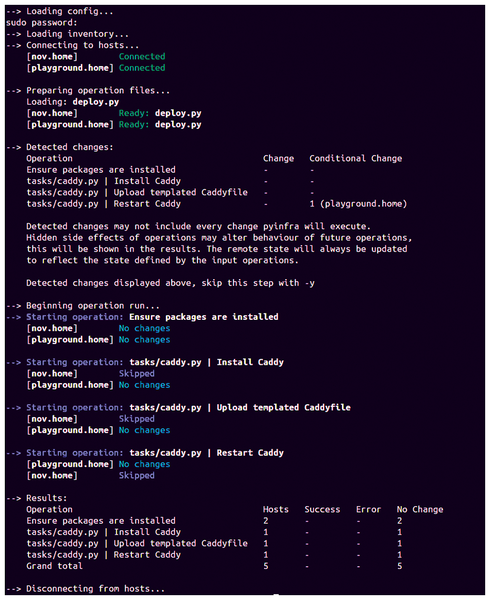 Figure 2: You can follow pyinfra's steps on the command line.
Conditional Operations
You can also run operations conditionally, for instance, based on a fact. This is useful if some operations only need to run on specific distributions. For instance, you can create a task with Debian-specific operations and then run it in your deploy code as
from pyinfra import host
from pyinfra.facts.server import LinuxName
if host.get_fact(LinuxName) == "Debian":
  local.include("tasks/debian.py")
It's important that you only do this with facts that don't change during the deploy. For instance, in Listing 3, you would maybe expect this to restart the systemd service after installing the Caddyfile template:
if caddyfile_installed.did_change:
  systemd.service(
    name="Restart Caddy",
    service="caddy",
    restarted=True,
    enabled=True,
    _sudo=True,
  )
However, because this code runs in the preparation stage before the operations run on the target, you can't use this value for decisions on what operations to run. That's why the code in Listing 3 included the argument
_if=caddyfile_installed.did_change
to the systemd.service operation instead of putting this operation inside an if block. This delays the check until execution time.
If an operation depends on multiple changes, you can use _if=any_changed(). For example, if you install a custom systemd service unit file for Caddy, the service needs to be restarted when the Caddyfile or the unit file have changed, so you can use an argument like
_if=any_changed(caddyfile_installed, service_file_installed)
in the systemd.service operation. Make sure to import any_changed from the pyinfra.operations.util module.
Applying GitOps with pyinfra
If you configure all your hosts this way using pyinfra, you can put these files in a Git repository that serves as the authoritative record of your infrastructure and application configuration. You can then make use of best practices and tools for software development to manage your systems. For instance, you can run some checks before committing code, using pre-commit hooks [8]. These could be checks on valid Python syntax or on your adherence to best practices.
If you create a pull request for every change in your infrastructure configuration, your code forge can then run automatic checks on your changes, and team members can easily review your changes. It's even possible to set up automatic delivery workflows with Continuous Integration/Continuous Delivery (CI/CD) tools, which automatically run your deploy on any merged pull request, implementing your changes in your infrastructure. This approach where your Git repository is the single source of truth for your infrastructure and application configuration is called GitOps.
Buy this article as PDF
(incl. VAT)
Buy Linux Magazine
Subscribe to our Linux Newsletters
Find Linux and Open Source Jobs
Subscribe to our ADMIN Newsletters
Digital Autonomy
• How the Fediverse Found Parts for Its Platforms
• The Answer Was Already on the Shelf
• Changing the Chip Industry: How Public Investment Has Grown Open Silicon
• United Nations Open Source Portal Goes Live
• EU Open Source Strategy Plays Key Role in Tech Sovereignty Package
• France Says “Au Revoir” to Microsoft
Support Our Work
Linux Magazine content is made possible with support from readers like you. Please consider contributing when you’ve found an article to be beneficial.

News
-
Epic Games Targets Linux for New Launcher
The Epic Games new launcher is still in preview, but it looks to land on several Linux distributions.
-
Fedora 45 Now Available
The latest iteration of Fedora has arrived with Gnome 51 and KDE Plasma 6.8.
-
Linux 7.4 is "Much Healthier" Thanks to AI
At nearly 42 million lines, Linux 7.4 is the largest merge in the kernel’s history.
-
Working Exploit for a Linux Kernel Flaw Made Public
Even before a bug received its CVE identifier or an upstream fix, the local privilege escalation vulnerability exploit found its way into the wild.
-
r/opensource Bans AI-Assisted and AI-Related Projects
The de facto subreddit for all things open source has not only banned AI-related projects but also users who "don't speak English."
-
Bottlenecks Discovered by Meta Engineers Lead to Scalability Improvements
Thanks to a small group of engineers at Meta, the Linux kernel module kernfs has been improved, which has led to some serious gains.
-
PwnEscape Poses VM Vulnerability
A guest-to-host escape flaw in Linux KVM, named PwnEscape, might be yet another means of attacking Linux.
-
Linux Mint 27 Set for a Christmas Release
The developers behind Linux Mint have announced a Christmas release, and it looks like Santa's sack will be brimming with features.
-
Is Linus Torvalds Vibe Coding?
The creator of Linux has added AI into his process for Linux kernel development, and it's more than just for debugging.
-
openKylin 3.0 Released with Expanded AI Integration
The latest release features a pre-installed AI agent to help perform tasks.