


Network-wide DNS filtering with AdGuard Home
Some Basic Settings
To actually use these AdGuard Home instances as DNS servers, you will first need to configure some basic settings. Remember, you'll now only modify settings on the origin instance, ignoring the replicas. Close the replicas' web interfaces and navigate to the origin's web interface.
At the top of the homepage, click on Settings | General settings. By default, only three general settings are enabled: Domains are blocked using filters, logs are enabled, and statistics are enabled. I'll explain more about the filters later; in these general settings, you can specify how often AdGuard Home updates its filters (the default is every 24 hours).
Two options allow for enabling services provided by the company AdGuard: their browsing security web service and their parental control web service. Both (free) services block access to domains identified as dangerous or adult websites, respectively. This is checked on AdGuard's servers by looking up part of an SHA256 hash value of the domain name, preventing AdGuard from knowing which domains you're visiting. This could be an additional layer of defense, but you don't have any control over which websites are blocked. You can achieve similar results by adding reliable blocklists to your AdGuard Home instance's filters. Another option, Use Safe Search, enforces safe search across Google, YouTube, DuckDuckGo, Bing, Ecosia, Pixabay, and Yandex, blocking explicit results in these search engines.
Because logs of domain name queries reveal the websites that devices on your network visit, privacy should be considered. The logs' configuration offers an option for IP address anonymization for DNS clients. You can also specify rules to exclude specific domains from logs or statistics. Additional general settings include the duration for log rotation and the period for statistics displayed at the top of AdGuard Home's dashboard.
Adding Upstream DNS Servers
AdGuard Home functions as a DNS proxy directing DNS queries from its clients to upstream DNS servers. By default, AdGuard Home uses the public DNS resolver operated by Quad9 [5], a Swiss-based nonprofit foundation focusing on privacy and security. However, under DNS settings, you can add multiple DNS servers to the Upstream DNS servers text field, one per line. To help you choose, AdGuard maintains a web page with a list of known DNS providers [6] with their addresses. Note that many of these DNS providers offer DNS servers that already block domains hosting malware, adult content, and more. Again, using them could provide an extra layer of defense, but you'll lose control over what exactly is blocked.
The DNS servers can be specified in various formats. Adding only an IP address configures AdGuard Home to use this DNS server with regular DNS over UDP port 53, which sends unencrypted queries. Anyone in the network path between your AdGuard Home server and the DNS server can see the domains your DNS clients are querying when you use this configuration. For enhanced privacy, using encrypted DNS protocols, such as DNS-over-TLS, DNS-over-HTTPS, or DNS-over-QUIC, is recommended. These protocols offer similar privacy and security features with different encryption and delivery methods.
For redundancy, choose a couple of DNS providers that meet your needs and include their resolvers in the text field, one line per resolver. Remember: These providers will receive queries for all websites you're visiting, so consider their privacy policy, the region they're operating from, and their track record. As a European, I added the unfiltered DNS resolvers using DNS-over-TLS from Quad9, DNS.SB [7], and the Foundation for Applied Privacy [8], all European DNS providers with a focus on privacy.
Under the Upstream DNS servers text field, you can choose the method to query DNS servers. The default, Load balancing, often works best: It queries one upstream server at a time, using a weighted random algorithm prioritizing servers with fewer failed lookups and lower average response times (see Figure 4 for an example of this behavior). The Parallel requests option queries all upstream servers simultaneously, potentially reducing latency with an unstable Internet connection or unstable DNS servers. However, fixing your Internet connection issues or selecting more stable DNS servers is advised first.
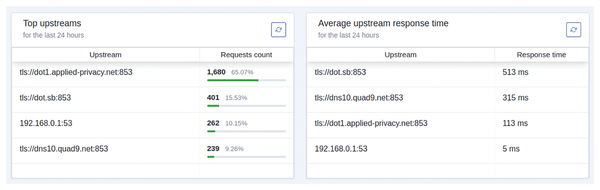 Figure 4: AdGuard Home uses dot1.applied-privacy.net much more than the other upstream DNS resolvers due to its significantly faster response time. The local resolver 192.168.0.1 is used solely for hostnames on the local domain.
After adding a few upstream DNS servers, click the blue button Test upstreams, which immediately shows whether AdGuard Home is able to resolve domains using the DNS servers. If you don't see an error message, click on Apply to save your changes.
If all upstream DNS servers implement Domain Name System Security Extensions (DNSSEC) validation, scroll to the DNS server configuration section, check Enable DNSSEC, and click Save. This adds an extra verification for domains that have their DNS records digitally signed. To use encryption protocols on your client, see the "ADGuard Home as an Encrypted DNS Server" box.
Resolving Local Domains
Before using AdGuard Home as your DNS server, there's still one last concern. You probably have a local domain to resolve hostnames of machines within your local network. If your router hosts a DHCP server, this is often coupled with a DNS resolver for the local domain. In my case, this domain is .home. I've created DHCP reservations assigning corresponding hostnames for all important machines on my local network, allowing easy hostname-based access (for example, mu.home instead of the less memorable IP address 192.168.0.133).
However, when configuring AdGuard Home instances as DNS servers for your machines as previously explained, the local domain translation function will be lost, because upstream DNS servers are unaware of your local network. Fortunately, AdGuard Home allows directing queries for specific domains to certain upstream DNS servers. Therefore, I add [/*.home/]192.168.0.1 to the upstream DNS servers (Figure 5), which means that AdGuard Home uses 192.168.0.1 (the DNS resolver coupled to my DHCP server on my router) for resolving all domain names in the home domain, and other DNS servers for external domains. Add the same local DNS resolver's IP address to the Private reverse DNS servers text field and enable Use private reverse DNS resolvers. Click again on Test upstreams to make sure you didn't mistype anything and then Apply to apply these changes. After this, open AdGuardHome sync's web interface and click on the Synchronize button to immediately synchronize these changes to the replicas.
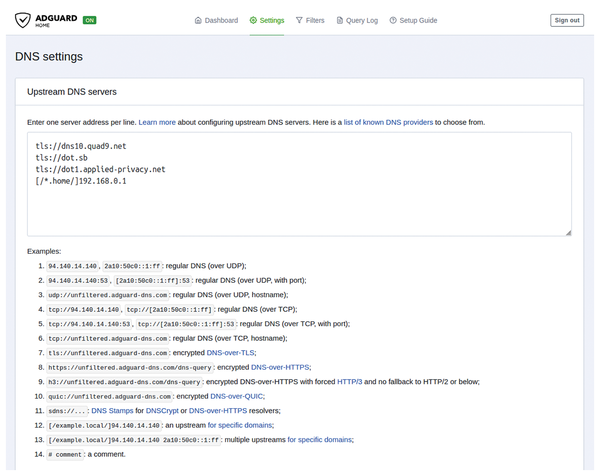 Figure 5: Specify several upstream DNS servers, including one for your local domain.
« Previous 1 2 3 4 Next »
Buy this article as PDF
(incl. VAT)
Buy Linux Magazine
Subscribe to our Linux Newsletters
Find Linux and Open Source Jobs
Subscribe to our ADMIN Newsletters
Support Our Work
Linux Magazine content is made possible with support from readers like you. Please consider contributing when you’ve found an article to be beneficial.

News
-
Nitrux 6.0 Now Ready to Rock Your World
The latest iteration of the Debian-based distribution includes all kinds of newness.
-
Linux Foundation Reports that Open Source Delivers Better ROI
In a report that may surprise no one in the Linux community, the Linux Foundation found that businesses are finding a 5X return on investment with open source software.
-
Keep Android Open
Google has announced that, soon, anyone looking to develop Android apps will have to first register centrally with Google.
-
Kernel 7.0 Now in Testing
Linus Torvalds has announced the first Release Candidate (RC) for the 7.x kernel is available for those who want to test it.
-
Introducing matrixOS, an Immutable Gentoo-Based Linux Distro
It was only a matter of time before a developer decided one of the most challenging Linux distributions needed to be immutable.
-
Chaos Comes to KDE in KaOS
KaOS devs are making a major change to the distribution, and it all comes down to one system.
-
New Linux Botnet Discovered
The SSHStalker botnet uses IRC C2 to control systems via legacy Linux kernel exploits.
-
The Next Linux Kernel Turns 7.0
Linus Torvalds has announced that after Linux kernel 6.19, we'll finally reach the 7.0 iteration stage.
-
Linux From Scratch Drops SysVinit Support
LFS will no longer support SysVinit.
-
LibreOffice 26.2 Now Available
With new features, improvements, and bug fixes, LibreOffice 26.2 delivers a modern, polished office suite without compromise.