


Network-wide DNS filtering with AdGuard Home
Testing Your DNS Servers
Now that you have a basic setup of redundant DNS servers, let's test them before configuring them as your machines' default DNS servers. You'll want to make sure that DNS resolution works, that you can still resolve local hostnames, and that unwanted domains are blocked.
First, check your AdGuard Home instances' IP addresses (in my case 192.168.0.131 and 192.168.0.139). Begin testing by resolving a public domain with both DNS servers, for example, using the dig command:
$ dig @192.168.0.131 linux-magazine.com+short
104.237.128.147
This shows that the DNS server is able to resolve the linux-magazine.com domain, returning a DNS A record pointing to the IP address 104.237.128.147. Verify that your other AdGuard Home instances resolve this domain as well.
Now try resolving a local domain, for example:
$ dig @192.168.0.131 mu.home +short
192.168.0.127
This shows that AdGuard Home uses your local DNS resolver for machines in your home domain. Repeat this with your other AdGuard Home instances to confirm that your configuration changes have been synchronized to the replicas.
Also test whether AdGuard Home is able to translate a local IP address to its corresponding hostname within your local domain:
$ dig @192.168.0.131 -x 192.168.0.127 +short
mu.home.
This shows that you've correctly configured the private reverse DNS options. As a last test, try resolving a domain included in AdGuard Home's default blocklist:
$ dig @192.168.0.131 ad.plus +short
0.0.0.0
As you can see, AdGuard Home returns 0.0.0.0 instead of a valid IP address, confirming that the domain has been blocked. With other types of blocklists, AdGuard Home returns 127.0.0.1 (localhost), with the same effect. Verify that the other AdGuard Home instances also block the domain.
After all these tests, revisit AdGuard Home's dashboard. This time it should display non-zero statistics, including your client's hostname and IP address in the Top clients list. These statistics of all your instances are added in AdGuardHome sync's dashboard as well (Figure 6).
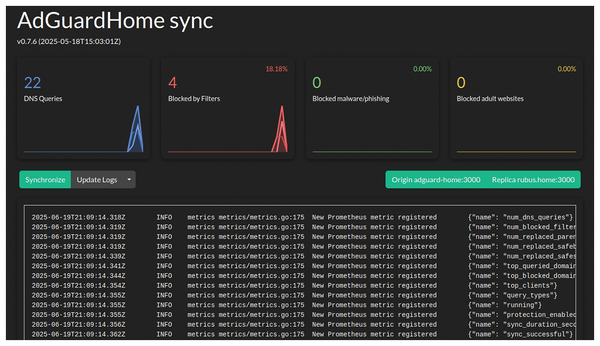 Figure 6: AdGuardHome sync aggregates statistics from all your AdGuard Home instances in a unified dashboard.
Going Live
Once you're confident that your AdGuard Home instances are all working correctly, specify their IP addresses as DNS servers within your DHCP server's configuration. How and where you do this depends on the DHCP server used, typically in your router's web interface. Depending on the system, multiple IP addresses should be separated by commas or spaces. If you also want to use your AdGuard Home instances as DNS servers when you're away from home and connected to a VPN server at home, make sure to change this in the VPN client's configuration as well.
After this, your devices need to renew their DHCP lease or restart their network connection to receive updated DNS server information. VPN clients need to disconnect from the VPN and reconnect for the DNS server update. You should observe an increase in statistics in your ADGuardHome sync dashboard (Figure 7). Check whether your computer is using one of your AdGuardHome instances as the DNS server with the resolvectl command, showing the currently used DNS server and the configured DNS servers. (See "DNS-Over-HTTPS in Your Browsers" if you don't see any browser-based queries.)
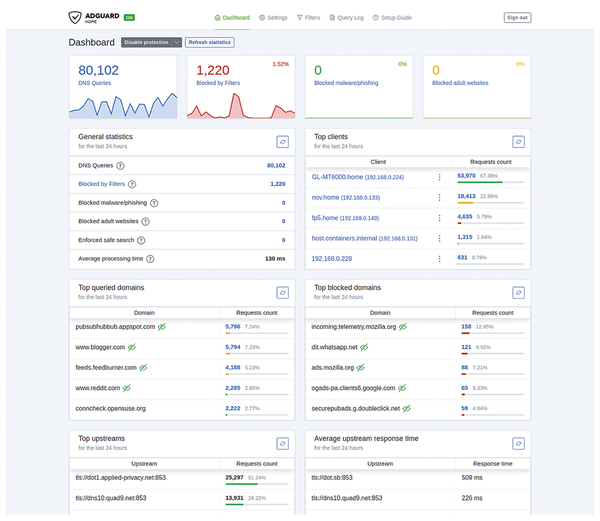 Figure 7: AdGuard Home's dashboard displays a lot of statistics.
DNS-Over-HTTPS in Your Browsers
If you don't see any queries in the query log from your web browsing, check whether your web browser is configured to use DNS-over-HTTPS with another DNS resolver. In Firefox, this can be found under Settings | Privacy & Security | DNS over HTTPS (Figure 8), in Chrome under Settings | Privacy and security | Security | Use secure DNS. Either you turn it off, or you configure AdGuard Home as an encrypted DNS server and point your browser to it. Note that any device on your network can use DNS-over-HTTPS to a public web server to bypass your AdGuard Home instances without you knowing it, because DNS-over-HTTPS is indistinguishable from normal HTTPS traffic.
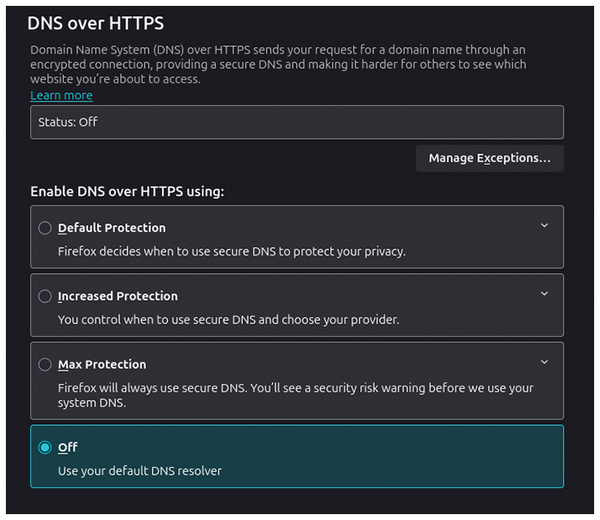 Figure 8: Make sure that your web browser isn't bypassing your AdGuard Home DNS server using DNS-over-HTTPS to a public resolver.
Adding Filters
Now that the basics are working, navigate to the Filters tab in AdGuard Home's web interface and click on DNS blocklists. By default, two blocklists are added, with the first one enabled: AdGuard DNS filter [9], counting more than 110,000 rules. Clicking on the URL in the List URL column displays the complete list of rules.
If you click on Add blocklist, you can choose between adding a custom list (which allows you to specify the URL to any blocklist), or selecting one from AdGuard's curated list (Figure 9). For instance, the oisd [10] blocklists are popular, prioritizing functionality over blocking to prevent websites from breaking. If using oisd's small or big blocklist, it might be prudent to disable AdGuard Home's default blocklist to prevent it from interfering with this approach.
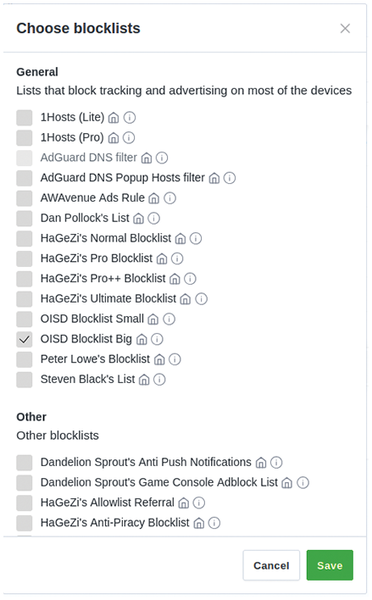 Figure 9: AdGuard Home offers a curated list of blocklists.
« Previous 1 2 3 4 Next »
Buy this article as PDF
(incl. VAT)
Buy Linux Magazine
Subscribe to our Linux Newsletters
Find Linux and Open Source Jobs
Subscribe to our ADMIN Newsletters
Support Our Work
Linux Magazine content is made possible with support from readers like you. Please consider contributing when you’ve found an article to be beneficial.

News
-
Nitrux 6.0 Now Ready to Rock Your World
The latest iteration of the Debian-based distribution includes all kinds of newness.
-
Linux Foundation Reports that Open Source Delivers Better ROI
In a report that may surprise no one in the Linux community, the Linux Foundation found that businesses are finding a 5X return on investment with open source software.
-
Keep Android Open
Google has announced that, soon, anyone looking to develop Android apps will have to first register centrally with Google.
-
Kernel 7.0 Now in Testing
Linus Torvalds has announced the first Release Candidate (RC) for the 7.x kernel is available for those who want to test it.
-
Introducing matrixOS, an Immutable Gentoo-Based Linux Distro
It was only a matter of time before a developer decided one of the most challenging Linux distributions needed to be immutable.
-
Chaos Comes to KDE in KaOS
KaOS devs are making a major change to the distribution, and it all comes down to one system.
-
New Linux Botnet Discovered
The SSHStalker botnet uses IRC C2 to control systems via legacy Linux kernel exploits.
-
The Next Linux Kernel Turns 7.0
Linus Torvalds has announced that after Linux kernel 6.19, we'll finally reach the 7.0 iteration stage.
-
Linux From Scratch Drops SysVinit Support
LFS will no longer support SysVinit.
-
LibreOffice 26.2 Now Available
With new features, improvements, and bug fixes, LibreOffice 26.2 delivers a modern, polished office suite without compromise.