


Network-wide DNS filtering with AdGuard Home
Customizing Clients
If all goes well, you shouldn't notice any adverse effects while browsing the web. Explore the Query Log tab in AdGuard Home's interface to take a look at blocked and processed DNS queries. Each DNS query details the request time, the requested domain, the response (blocked or processed), and the client. For normal clients, their hostname and IP address are shown, if you've correctly configured resolving of local hostnames as previously instructed.
For VPN clients, only their IP address on the VPN is shown. However, you can fix this easily by clicking on the three dots at the right of a DNS query from this client in the Query Log page and then choosing Add as persistent client (Figure 10). Give the client a descriptive name (e.g., its hostname with on VPN added). You can also select some tags to describe the device type, operating system, and user group, which can be used in custom filtering rules later (Figure 11).
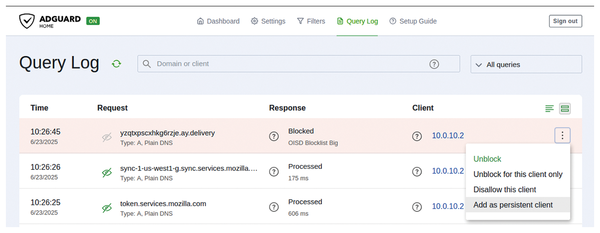 Figure 10: Add a host as a persistent client to customize settings.
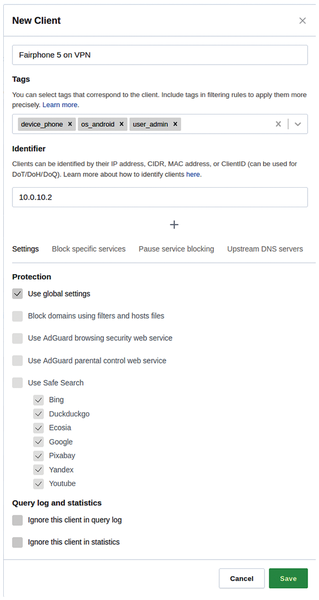 Figure 11: Customize settings for a client.
Leave the Use global settings option as is, or uncheck it to choose specific settings for this device such as to use AdGuard's parental control web service for your child's device or to block specific services during designated hours (see the "Blocking Popular Services" box). You can even specify different upstream DNS servers per client. After clicking on Save, the client's name will appear in the query log and in the Top clients list of AdGuard Home's dashboard.
Blocking Popular Services
Blocking specific services, such as Xbox Live or Minecraft, can be tricky because they often use multiple domains. Therefore, AdGuard Home has a list of popular sites and services that you can easily block. Just go to Filters | Blocked services, slide the toggle next to the unwanted services, and click on Save. You can even unblock the services during specific times and days. Blocking services is possible globally or in a specific client's settings (i.e., for blocking distracting services on your children's devices).
Use the same method for non-VPN hosts only shown with their IP address. And even if a client is already shown with its hostname, it's useful to add it as a persistent client, because it allows assigning relevant tags to it for custom filtering rules. Changing a persistent client's settings after creating it is always possible by clicking on Settings and then Client settings.
Customizing Filters
After browsing the web with AdGuard Home acting as a filter, there will invariably come a time when you don't agree with a choice of your configured blocklists. Fortunately, modifications are simple. If AdGuard Home has blocked a domain that you do want to access, just scroll through the query log or search for the domain in the text box at the top, click on the three dots at the right of the query, and choose Unblock to unblock it for all clients or Unblock for this client only to add this domain to one client's custom filtering rules (Figure 12). Conversely, if a query is passed through and you want it to be blocked in the future, the same menu shows the options Block and Block for this client only.
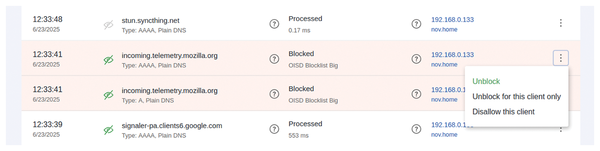 Figure 12: You can easily block or unblock domains, even for a specific client, from AdGuard Home's query log.
You can always consult the current list of filtering rules that you've added this way by clicking on Filters | Custom filtering rules. You can also manually edit or add rules on this page if you know the DNS filtering rules syntax [11]. For instance, if the domain example.org and all subdomains are in your blocklist, you can unblock them solely for clients that have the user_admin tag through a rule:
@@||example.org^$ctag=user_admin
If you have a complex combination of blocklists and custom filtering rules, the page also features a filtering check: Just fill in a hostname or domain name, a client identifier, and a DNS record type, and click on Check to see the result. There's even a button to add a blocking or unblocking rule of the domain to your filtering list (Figure 13).
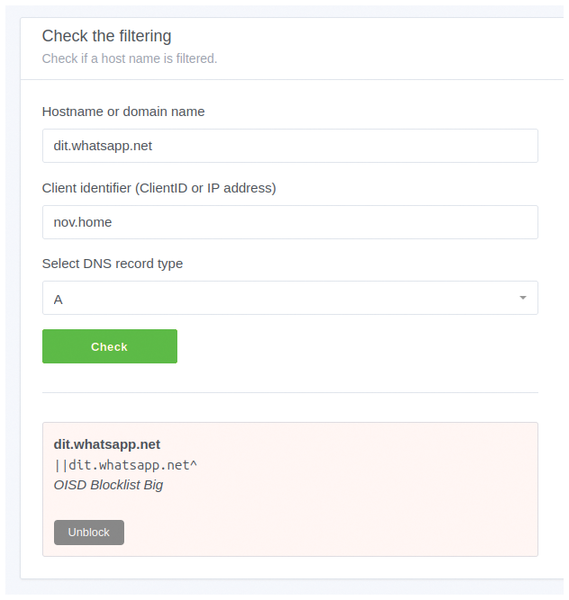 Figure 13: Check whether AdGuard Home filters a domain.
Conclusion
AdGuard Home is a powerful, flexible, and easy-to-use gatekeeper for your local network. Its DNS-based filtering works network-wide, so you don't need to configure its protection capabilities on each network device individually. After its initial configuration, you can just forget AdGuard Home and it does its job in the background. At the same time, it's highly customizable if you do want to change something. AdGuard Home's client-specific settings are especially useful if you want to block some domains only for certain devices, for instance, your smart TV or devices used by your children.
Infos
- AdGuard Home: https://adguard.com/en/adguard-home/overview.html
- GL.iNet: https://www.gl-inet.com
- Install AdGuard Home on OpenWrt: https://openwrt.org/docs/guide-user/services/dns/adguard-home
- AdGuardHome sync: https://github.com/bakito/adguardhome-sync
- Quad9: https://quad9.net
- Known DNS providers: https://adguard-dns.io/kb/general/dns-providers/
- DNS.SB: https://dns.sb
- Foundation for Applied Privacy: https://applied-privacy.net
- AdGuard DNS filter: https://github.com/AdguardTeam/AdGuardSDNSFilter
- oisd: https://oisd.nl
- DNS filtering rules syntax: https://adguard-dns.io/kb/general/dns-filtering-syntax/
The Author

Koen Vervloesem has been writing about Linux and open source, computer security, privacy, programming, artificial intelligence, and the Internet of Things for more than 25 years. He holds master's degrees in Computer Science Engineering and Philosophy and is teaching Linux, Python, and IoT classes. You can find more on his website at http://koen.vervloesem.eu.
« Previous 1 2 3 4
Buy this article as PDF
(incl. VAT)
Buy Linux Magazine
Subscribe to our Linux Newsletters
Find Linux and Open Source Jobs
Subscribe to our ADMIN Newsletters
Support Our Work
Linux Magazine content is made possible with support from readers like you. Please consider contributing when you’ve found an article to be beneficial.

News
-
Nitrux 6.0 Now Ready to Rock Your World
The latest iteration of the Debian-based distribution includes all kinds of newness.
-
Linux Foundation Reports that Open Source Delivers Better ROI
In a report that may surprise no one in the Linux community, the Linux Foundation found that businesses are finding a 5X return on investment with open source software.
-
Keep Android Open
Google has announced that, soon, anyone looking to develop Android apps will have to first register centrally with Google.
-
Kernel 7.0 Now in Testing
Linus Torvalds has announced the first Release Candidate (RC) for the 7.x kernel is available for those who want to test it.
-
Introducing matrixOS, an Immutable Gentoo-Based Linux Distro
It was only a matter of time before a developer decided one of the most challenging Linux distributions needed to be immutable.
-
Chaos Comes to KDE in KaOS
KaOS devs are making a major change to the distribution, and it all comes down to one system.
-
New Linux Botnet Discovered
The SSHStalker botnet uses IRC C2 to control systems via legacy Linux kernel exploits.
-
The Next Linux Kernel Turns 7.0
Linus Torvalds has announced that after Linux kernel 6.19, we'll finally reach the 7.0 iteration stage.
-
Linux From Scratch Drops SysVinit Support
LFS will no longer support SysVinit.
-
LibreOffice 26.2 Now Available
With new features, improvements, and bug fixes, LibreOffice 26.2 delivers a modern, polished office suite without compromise.