


Running Windows Apps on Linux
Running and Managing Programs
Once installation finishes, Bottles usually detects the installed application automatically and adds it to the bottle's Programs section so you can launch it easily. Simply press the Play button adjacent to the program to launch it.
Note that if you've installed an app manually, sometimes you might see multiple programs inside a bottle. You can find the correct program by trial and error. You can then hide the programs that you don't want to see in the installed list. To do this, open the kebab menu adjacent to the program you want to hide and select the Hide Program option.
Sometimes Bottles doesn't automatically detect a program after installation, in which case you'll have to manually point it to the installed app's executable file. To do this, click Add Shortcuts…, which will fire up the file manager to that bottle's virtual Windows filesystem, where you can then browse to the executable file. Most applications are located in directories similar to those on a real Windows system, such as drive_c/Program Files/. Double-click on the executable to add it to the Programs section in the bottle.
If you have installed multiple Windows applications, you'll have to navigate inside multiple bottles to launch the respective apps. To save time, you can also add the apps to the Library section, which serves as a centralized, user-friendly interface to browse and launch installed Windows programs and games. To do this, again click on the kebab menu adjacent to the entry in the Programs section and select the Add to Library option.
Integration with Linux
The good thing about Bottles is that it allows you to add the Windows apps and games to your native Linux application launcher as well.
Because you installed Bottles via Flatpak, you'll have to give it permission to generate desktop entries. For this, make sure Bottles isn't running, and type the following command in a terminal:
$ flatpak override com.usebottles.bottles --user --filesystem=xdg-data/applications
Now fire up Bottles, and make your way to the Programs list inside a bottle. Again, click on the kebab menu adjacent to a program and select the Add Desktop Entry option. You can then launch the Windows app directly from your Linux desktop without firing up Bottles!
Also, because Flatpak apps are sandboxed, they cannot access files outside their own container by default. To override this behavior and let the Windows apps inside Bottles access the Linux filesystem, head to the terminal and type
$ flatpak override --user --filesystem="pictures" com.usebottles.bottles
The --filesystem="pictures" option grants access to the user's ~/Pictures folder. You can replace pictures with home to give access to your entire home directory.
Fine-Tuning Your Bottles
Most Windows applications will run without any changes, but some need a little extra help.
For starters, when you install a Windows application manually, it often expects certain supporting libraries to already be present. These can include frameworks such as Microsoft .NET Framework or runtime components like Microsoft Visual C++ Redistributable. If they are missing, the application may fail to start or display errors about missing DLL files.
If you get such errors, make a note of the missing library. Then, inside the bottle, scroll to the Options section and click Dependencies. Now search for the missing component from the list, click on it to download, and install it (Figure 4). Because dependencies are isolated within the bottle, they do not affect other bottles or your Linux system.
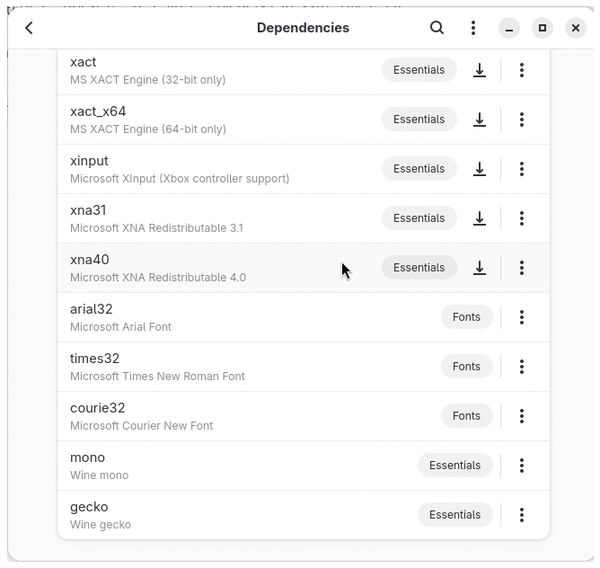 Figure 4: The dependency manager lists both installed dependencies as well as the ones available for download.
Another common issue arises because some applications are tied closely to specific versions of Windows. If you run into compatibility warnings or installers that won't launch, you can change the Windows version reported by the bottle. Click the Settings option inside a bottle and scroll down to the Compatibility section. Here you can switch between older versions such as Windows XP to newer releases like Windows 11 simply by using a pull-down menu (Figure 5).
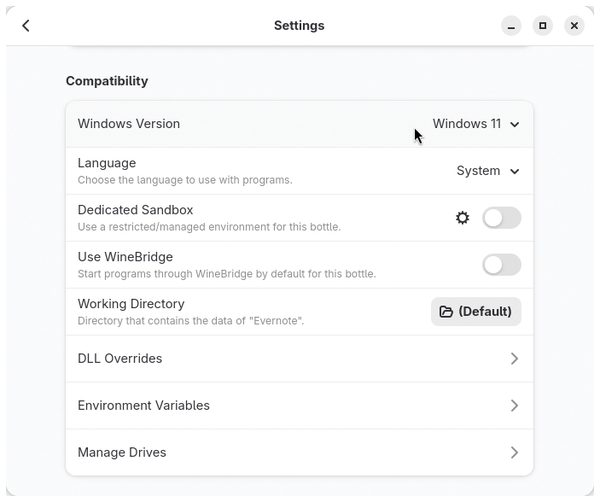 Figure 5: A bottle's Settings panel lists various options for optimizing the performance of a bottle sorted into four broad categories.
Graphics handling is another area where a simple tweak can have a significant impact. Many Windows applications rely on DirectX, while Linux systems use technologies like Vulkan. Bottles bridges this gap using translation layers, the most notable being DXVK. By enabling DXVK in the Components section under Settings, you allow DirectX-based applications to use Vulkan for rendering. Once enabled you'll notice improved performance in games or visually intensive tools.
Another important setting you can tweak is the runner used by the bottle. A runner determines how Windows applications are executed, and different runners include different compatibility fixes and optimizations. You can switch runners in the Components section. If the number of available runners is not sufficient, you can download additional runners from Bottles's global Preferences section. Once installed, these become available across all your bottles.
As you begin experimenting with these settings, it becomes important to have a safety net. Bottles provides this through its snapshot feature. A snapshot captures the entire state of a bottle at a given moment, including installed programs, dependencies, and configuration changes.
To create a snapshot, click the Snapshots entry under the Options panel inside each bottle. Then click the + button to create a snapshot. You can now experiment by installing new libraries, switching runners, or tweaking performance settings.
If something stops working, you can return to the Snapshots section, select the saved state, which will then be restored (Figure 6). Once it's done restoring the snapshot, the bottle reverts to its earlier, working condition, saving you the time and effort of rebuilding everything from scratch.
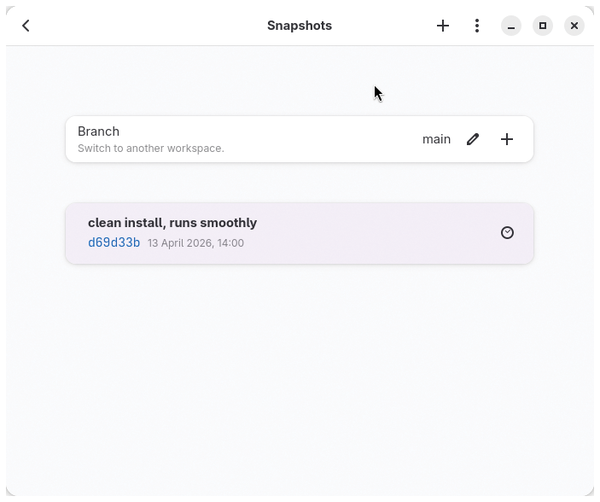 Figure 6: Think of snapshots as a version manager that you can use to create and restore a bottle's state at any specific point in time.
« Previous 1 2 3 Next »
Buy this article as PDF
(incl. VAT)
Buy Linux Magazine
Subscribe to our Linux Newsletters
Find Linux and Open Source Jobs
Subscribe to our ADMIN Newsletters
Digital Autonomy
• How the Fediverse Found Parts for Its Platforms
• The Answer Was Already on the Shelf
• Changing the Chip Industry: How Public Investment Has Grown Open Silicon
• United Nations Open Source Portal Goes Live
• EU Open Source Strategy Plays Key Role in Tech Sovereignty Package
• France Says “Au Revoir” to Microsoft
Support Our Work
Linux Magazine content is made possible with support from readers like you. Please consider contributing when you’ve found an article to be beneficial.

News
-
Bottlenecks Discovered by Meta Engineers Lead to Scalability Improvements
Thanks to a small group of engineers at Meta, the Linux kernel module kernfs has been improved, which has led to some serious gains.
-
PwnEscape Poses VM Vulnerability
A guest-to-host escape flaw in Linux KVM, named PwnEscape, might be yet another means of attacking Linux.
-
Linux Mint 27 Set for a Christmas Release
The developers behind Linux Mint have announced a Christmas release, and it looks like Santa's sack will be brimming with features.
-
Is Linus Torvalds Vibe Coding?
The creator of Linux has added AI into his process for Linux kernel development, and it's more than just for debugging.
-
openKylin 3.0 Released with Expanded AI Integration
The latest release features a pre-installed AI agent to help perform tasks.
-
DigitalOcean Ends Open Source Credits Program
In a change that has surprised many open source developers, DigitalOcean has decided to sunset its Open Source Credits Program.
-
Office 365 Available for Testing on Linux via Bottles
Linux users can now test the official Office 365, thanks to Mirko Brombin's work on Bottles.
-
Dutch Government Turns to Open Source for Digital Sovereignty
Following in the footsteps of other European countries, the Netherlands is looking to increase its sovereign digital infrastructure with open source software.
-
Linux May Soon Work on Snapdragon X2-Based PCs
If you're thinking about buying a Snapdragon X2-based desktop or laptop, Linux may soon be an option.
-
KDE for People Initiative Calls for AI Ban in Plasma
A new community of KDE wants the project to adopt a strict no-AI policy for KDE Plasma.